
The best Chromebook in NZ overall is the ASUS Chromebook Plus CX34, because it pairs an Intel Core i5-1334U with 8GB of memory and 256GB of fast storage, which is far more headroom than ChromeOS machines usually carry. Every pick below is built around a different need rather than one universal best spec sheet.
A Chromebook runs ChromeOS rather than Windows, so it is fast and low-maintenance for browsing, Google Workspace, email and streaming, and a poor fit for heavy local software. If that sounds too limited, a full laptop or a student laptop is the better starting point, and a tablet covers casual use.
| Pick | Best for | Screen | Key hardware |
|---|---|---|---|
| ASUS Chromebook Plus CX34 | Overall | 14.0in FHD 1920×1080 anti-glare | Intel Core i5-1334U, 8GB LPDDR5, 256GB UFS |
| Lenovo Chromebook 14M8911 (4GB, non-touch) | Budget | 14in WUXGA 1920×1200 IPS | MediaTek Kompanio 540 8-core 2.6GHz, 4GB LPDDR5X, 128GB UFS |
| Lenovo Chromebook Duet 11 | Detachable 2-in-1 | 10.95in WUXGA 1920×1200 IPS touchscreen | MediaTek Kompanio 838 8-core, 4GB, 128GB eMMC 5.1 |
| ASUS Chromebook CX14 (Core 3-N355, 8GB) | Everyday Multitasking | 14.0in FHD 1920×1080 anti-glare | Intel Core 3-N355, 8GB LPDDR5, 128GB eMMC |
| Lenovo Chromebook 14M8911 Touch (8GB) | Value Upgrade | 14in WUXGA 1920×1200 IPS touchscreen | MediaTek Kompanio 540 8-core 2.6GHz, 8GB LPDDR5X, 128GB UFS |
| ASUS Chromebook CX14 (Intel N50, 4GB) | Compact Study Machine | 14.0in FHD 1920×1080 anti-glare | Intel Processor N50, 4GB LPDDR5, 128GB eMMC |
| ASUS Chromebook Vibe CX34 Flip | Cloud Gaming | 14.0in WUXGA 1920×1200 touch | Intel Core i5-1235U with Iris Xe, 8GB LPDDR4X, 256GB NVMe SSD |
| Samsung Galaxy Chromebook Go | Ultra-Portable | 14in 1366×768 LCD anti-glare | Intel Celeron N4500 1.10 to 2.80GHz, 4GB LPDDR4x, 32GB eMMC |
| Lenovo IdeaPad 3 Chromebook 15.6 inch | Large Screen | 15.6in FHD 1920×1080 TN | Intel Pentium Silver N6000, 8GB LPDDR4X soldered, 128GB eMMC 5.1 |
| ASUS Chromebook Flip CX1 | Affordable Convertible | 14in FHD touchscreen | Intel Celeron N4500, 8GB LPDDR4X onboard, 128GB eMMC |
The Best Chromebooks in NZ
1. ASUS Chromebook Plus CX34 – Best Overall
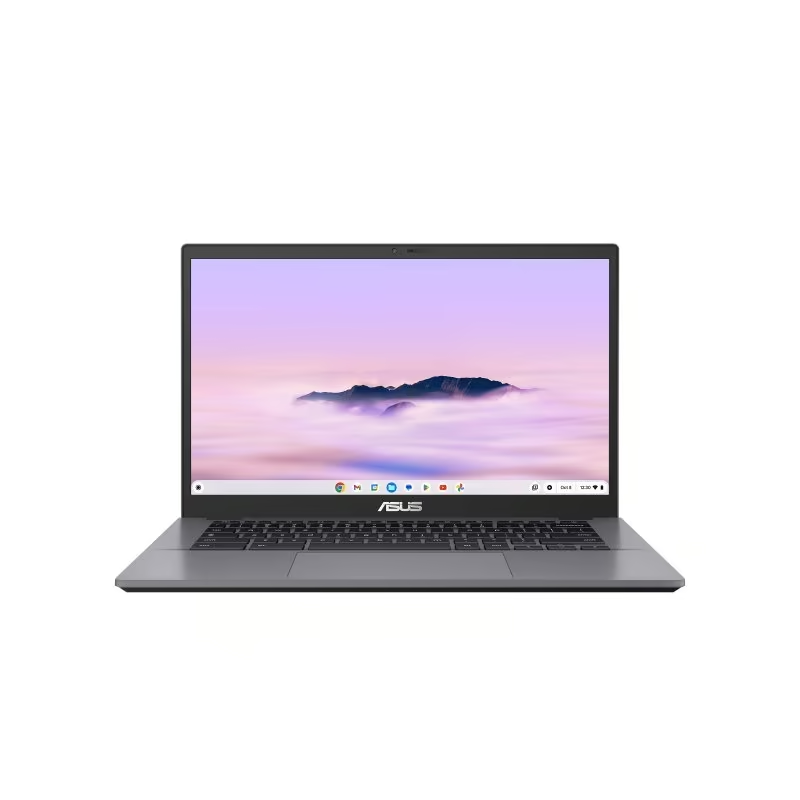
The Chromebook Plus CX34 keeps things plain in Rocky Grey, weighs from 1.44kg and has passed US MIL-STD 810H durability testing. Its 14 inch screen is a 1920 x 1080 anti-glare panel rated at 250 nits, sitting behind fairly conventional bezels. A 180 degree lay-flat hinge lets the lid fold flat so the screen can be shared across a desk.
The Intel Core i5-1334U is far more processor than most Chromebooks carry, and paired with 8GB of LPDDR5 it copes with heavy tab loads, video calls and Android apps without stalling. ASUS specifies 256GB of UFS storage rather than the slower eMMC used in budget models. The Chromebook Plus tier also adds offline Google apps plus Photoshop on the web and Adobe Express.
The compromises are the panel and the fixed memory. At 250 nits the display is dim for bright rooms, the 45 percent NTSC gamut rules out colour-critical work, and the 8GB of LPDDR5 is soldered with no upgrade path. It suits a buyer who wants a Chromebook that will still feel quick in a few years and who lives mostly in the browser.
Pros
- Intel Core i5-1334U is unusually powerful for ChromeOS, with 10 cores and boost to 4.6GHz
- ASUS specifies 256GB UFS storage, faster than the eMMC in cheaper Chromebooks
- Wi-Fi 6E, 1080p webcam with a physical privacy shutter and a backlit keyboard
- 180 degree lay-flat hinge and a MIL-STD 810H tested chassis at 1.44kg
Cons
- 250 nit, 45 percent NTSC display is dim and colour-limited for the class
- 8GB of LPDDR5 is soldered on and cannot be increased later
- 16:9 aspect ratio gives less vertical working space than 16:10 rivals
Key specs: 14.0in FHD 1920×1080 anti-glare, 250 nits | Intel Core i5-1334U (10 cores, up to 4.6GHz) | 8GB LPDDR5 | 256GB UFS | 1.44kg | 50Wh, up to 10 hours claimed
2. Lenovo Chromebook 14M8911 – Best Budget
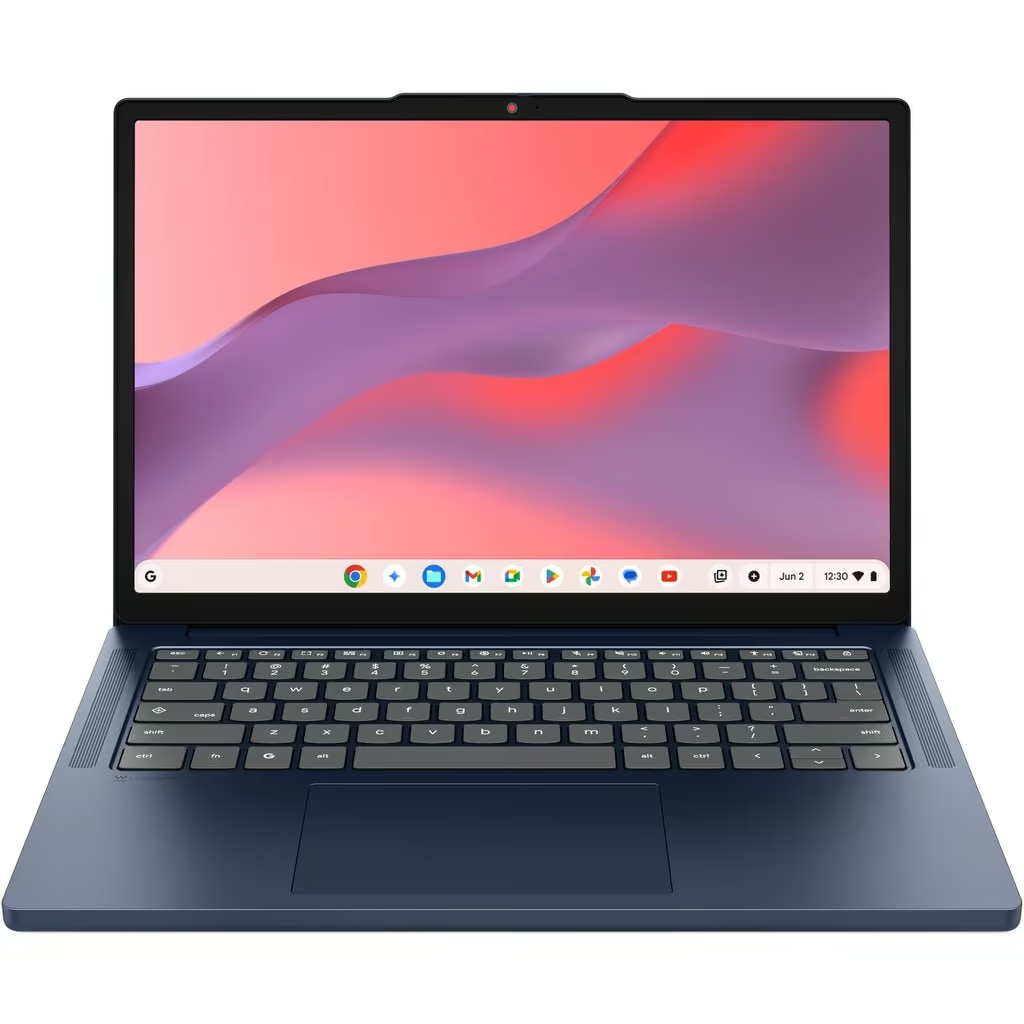
The 14M8911 is a straightforward blue clamshell that measures 19.9mm thick and weighs 1.36kg, so it slips into a bag without much fuss. Its 14 inch display is a 1920 x 1200 IPS panel in the taller 16:10 shape, which shows more of a document or web page than the 16:9 screens still common at this level. This variant uses a non-touch screen, so it is built around the keyboard and trackpad.
Inside is an eight core MediaTek Kompanio 540 running to 2.6GHz, 4GB of LPDDR5X memory and 128GB of UFS storage. UFS is a meaningful step up from the eMMC storage most budget Chromebooks use, so files copy and apps open faster than the specifications suggest. Connectivity is well ahead of the price bracket too, with Wi-Fi 7, Bluetooth 5.3, HDMI, two USB-A and two USB-C ports.
The catch is the 4GB of memory, which is soldered and will feel tight once a dozen tabs and a video call are running at once. The HD 720p webcam is basic, and without a touchscreen the Android apps in Google Play are clumsy to use. This is the pick for a student or a second household machine where browsing, Google Docs and streaming are the whole job.
Pros
- 128GB of UFS storage rather than the slower eMMC used by most Chromebooks at this level
- Wi-Fi 7 and Bluetooth 5.3 are unusually current for an entry-level machine
- Full port set with HDMI, two USB-A and two USB-C, so no dongle is needed for a monitor
- Taller 16:10 1920 x 1200 panel shows more of a page than a 16:9 screen
Cons
- 4GB of RAM is soldered and cannot be upgraded, which shows once many tabs are open
- No touchscreen, so touch-first Android apps are awkward to use
- Only an HD 720p webcam, which looks soft on video calls
Key specs: 14in WUXGA 1920×1200 IPS, non-touch | MediaTek Kompanio 540 8-core 2.6GHz | 4GB LPDDR5X | 128GB UFS | 1.36kg | 50Whr, up to 18 hours claimed
3. Lenovo Chromebook Duet 11 – Best Detachable 2-in-1
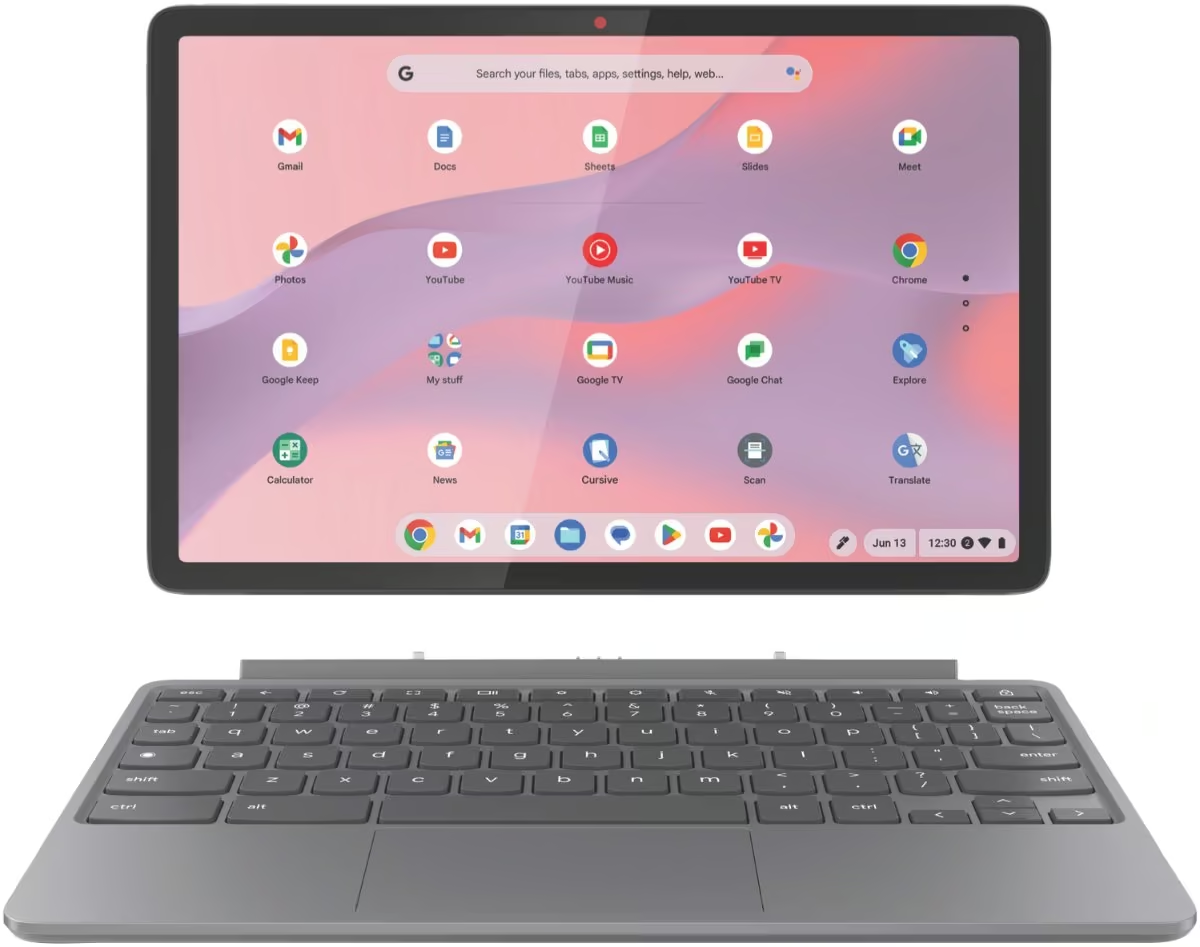
The Duet 11 is a detachable rather than a folding laptop, so the 10.95 inch tablet does the computing and the folio keyboard clips on when it is needed. Lenovo includes both the folio stand and the folio keyboard in the box, and the whole package weighs about 1.1kg. The 1920 x 1200 IPS touchscreen runs to 400 nits, which is bright enough to use comfortably near a window.
An eight core MediaTek Kompanio 838 drives it, paired with 4GB of memory and 128GB of eMMC storage. That is enough for browsing, Google Docs, streaming and Android apps, and the stereo speakers tuned with Waves MaxxAudio are better than the size suggests. Wi-Fi 6 and Bluetooth 5.1 handle connectivity, and Lenovo quotes up to 12 hours from the 29Whr battery.
Two USB-C ports are the entire selection, so there is no HDMI, no USB-A and no card reader, and the compact folio keyboard is workable rather than comfortable for long typing sessions. Buyers should also note that this configuration does not include a stylus, even though other Duet listings do bundle one. It suits anyone who wants a tablet first and a laptop second.
Pros
- Folio stand and folio keyboard are both included in the box
- Works as a tablet, a laptop and a propped-up screen from a single device
- Bright 400 nit WUXGA touchscreen, unusual for a device this size
- About 1.1kg all up, so it is genuinely easy to carry in a school bag
Cons
- No stylus included with this configuration, so a USI pen must be bought separately
- Only two USB-C ports, with no HDMI, USB-A or card reader
- 4GB of RAM and a small 29Whr battery limit heavy multitasking
Key specs: 10.95in WUXGA 1920×1200 IPS touchscreen, 400 nits | MediaTek Kompanio 838 8-core | 4GB | 128GB eMMC 5.1 | 1.1kg | 29Whr, up to 12 hours claimed
4. ASUS Chromebook CX14 – Best for Everyday Multitasking
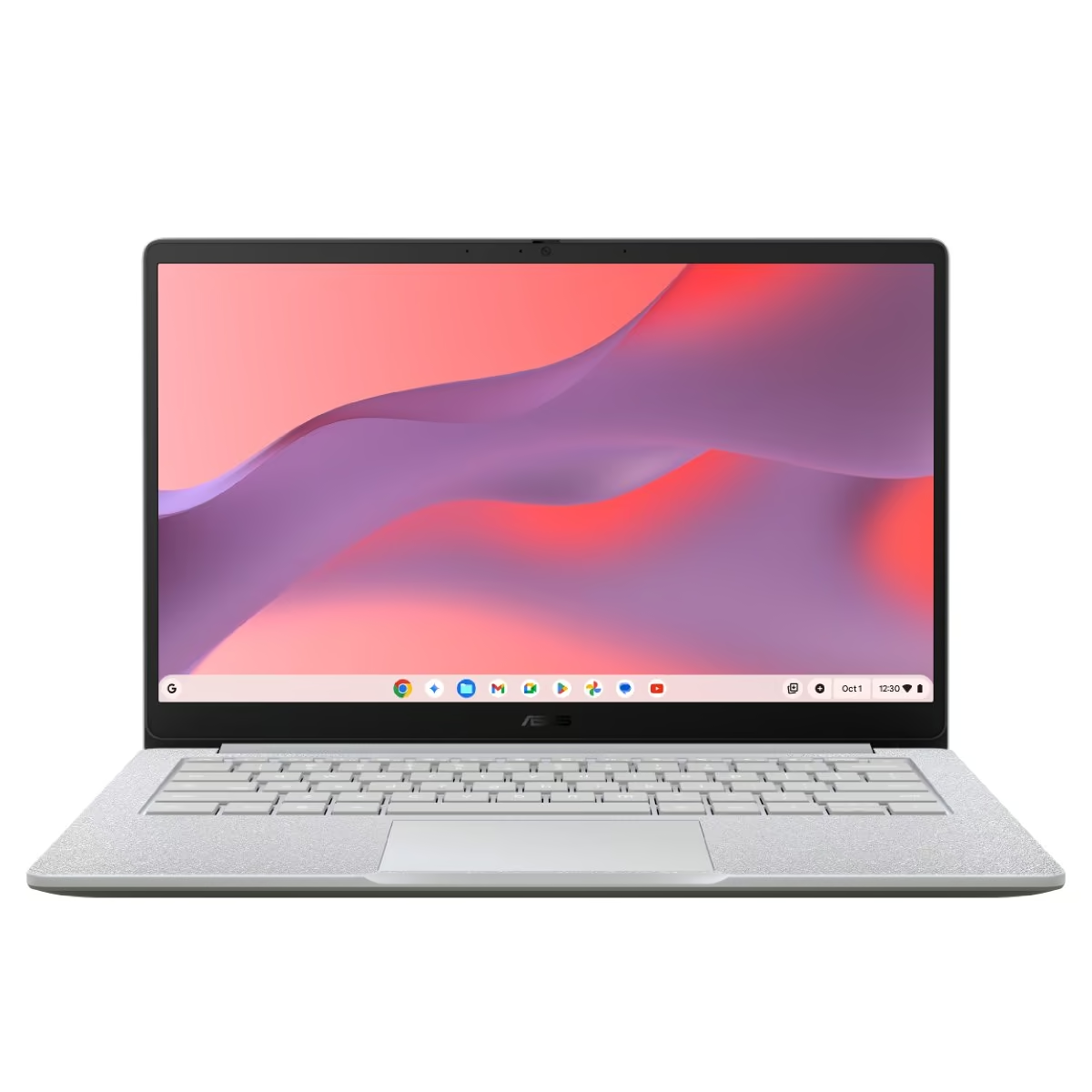
The Chromebook CX14 comes in Pure Grey, and the shell uses 30 percent recycled plastic. It weighs from 1.39kg and opens on a 180 degree hinge. The 14 inch 1920 x 1080 anti-glare panel is rated at 300 nits with an 86 percent screen-to-body ratio, so the bezels are tighter than on ASUS’s pricier CX34.
The Intel Core 3-N355 is the reason to pick this configuration over the cheaper N50 version, bringing eight cores and boost to 3.9GHz against the N50’s two cores. With 8GB of LPDDR5 it handles a busy tab load, a video call and a few Android apps at once far more comfortably. Connectivity covers Wi-Fi 6, Bluetooth 5.4, two USB-C, one USB-A and full-size HDMI, so no dongles are needed for an external monitor.
Corners have been cut where they show least on a spec sheet but most in daily use. The keyboard is not backlit, the webcam is only 720p, and 128GB of eMMC is both small and slower than UFS. It suits a household or student who wants ChromeOS that stays responsive with a dozen tabs open and does not need much local storage.
Pros
- Intel Core 3-N355 gives eight cores in a class where two-core chips are normal
- 8GB LPDDR5 and a 300 nit, 86 percent screen-to-body display
- Full HDMI, two USB-C and one USB-A port, so no adapters needed
- 1.39kg, MIL-STD 810H tested and a spill-resistant keyboard
Cons
- Keyboard is not backlit
- Only a 720p webcam, where the CX34 gets 1080p
- 128GB of eMMC storage is small and slower than UFS
Key specs: 14.0in FHD 1920×1080 anti-glare, 300 nits | Intel Core 3-N355 (8 cores, up to 3.9GHz) | 8GB LPDDR5 | 128GB eMMC | 1.39kg | 42Wh
5. Lenovo Chromebook 14M8911 Touch – Best Value Upgrade
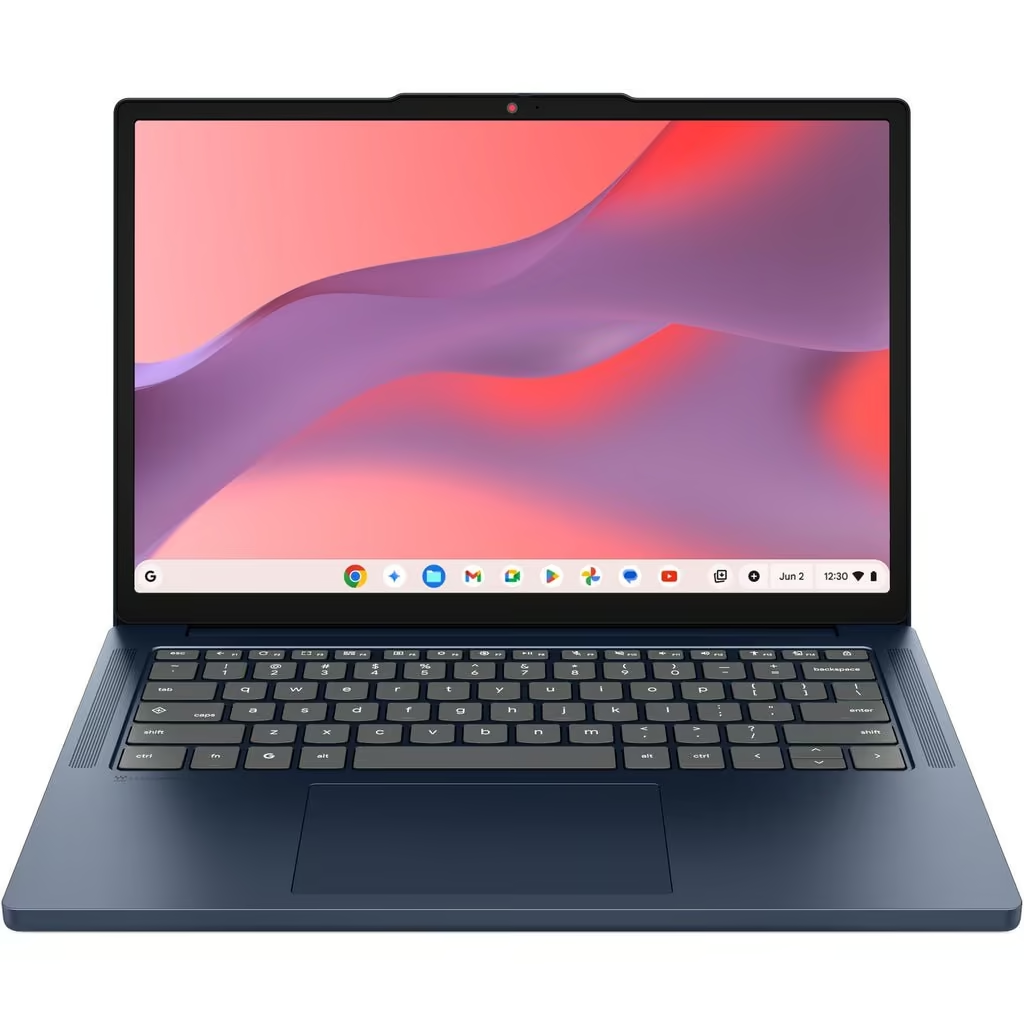
Physically this is the same 14 inch machine as the 4GB model, right down to the 1.36kg weight and blue finish. The difference is the glass, because the 1920 x 1200 IPS panel here is a touchscreen, which changes how the Chromebook is used day to day. Scrolling long pages, marking up a document and driving Android apps all become direct actions rather than trackpad work.
The other change matters more. Doubling the memory to 8GB of LPDDR5X gives the Kompanio 540 room to keep a full set of tabs, a video call and a couple of Android apps alive at once without constantly reloading them. Storage stays at 128GB of UFS and the port selection is unchanged, and the 50Whr battery is the same, so the extra memory does not cost runtime.
The processor has not changed, so genuinely demanding work is still out of reach, and storage is fixed at 128GB. The webcam is the same basic HD unit as the cheaper model. Even so, the 8GB and touchscreen combination is the version worth stretching to for anyone who keeps a lot of tabs open or wants Android apps to feel natural.
Pros
- 8GB of LPDDR5X gives real headroom for tab-heavy schoolwork and split-screen use
- Touchscreen makes Google Play Android apps far more usable than on the non-touch model
- Same 50Whr battery and full HDMI, USB-A and USB-C port set as the cheaper variant
- 128GB of UFS storage keeps app launches and file transfers quick
Cons
- The Kompanio 540 processor is unchanged, so the performance ceiling matches the budget model
- Storage is not expandable, so 128GB is the hard limit
- Only an HD webcam, and at 1.36kg it is not a lightweight option
Key specs: 14in WUXGA 1920×1200 IPS touchscreen | MediaTek Kompanio 540 8-core 2.6GHz | 8GB LPDDR5X | 128GB UFS | 1.36kg | 50Whr, up to 18 hours claimed
6. ASUS Chromebook CX14 – Best Compact Study Machine
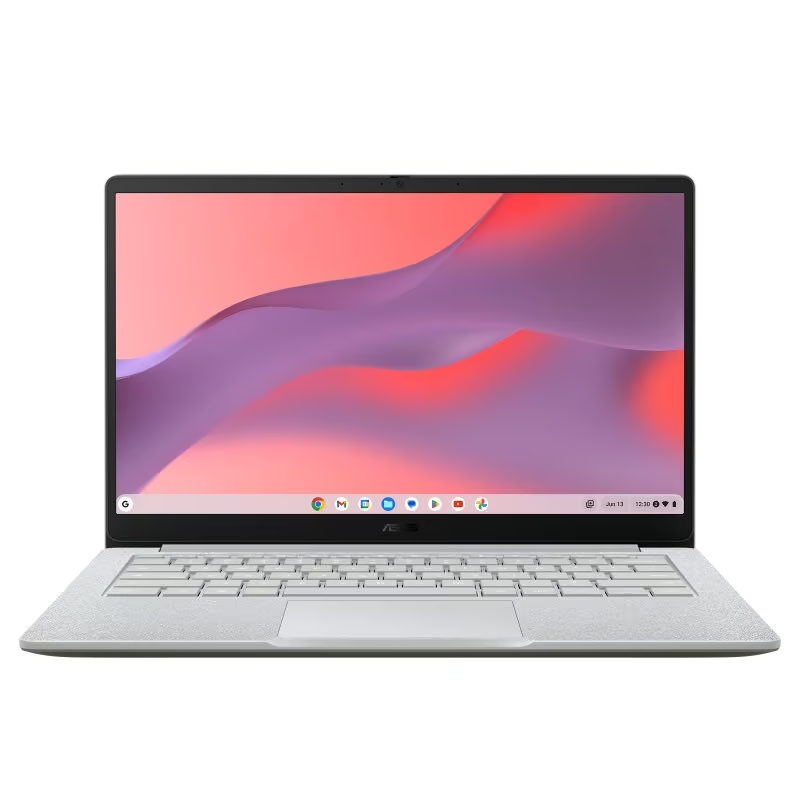
This is the same Pure Grey CX14 chassis as the Core 3 model, so it keeps the 1.39kg weight, the 180 degree hinge and the MIL-STD 810H testing. The 14 inch 1920 x 1080 anti-glare panel is rated at 300 nits with an 86 percent screen-to-body ratio, which is generous for an entry-level Chromebook. Ports are unchanged too, with two USB-C, one USB-A, HDMI and a 3.5mm combo jack.
Inside sits the two core Intel Processor N50 with 4GB of LPDDR5 and 128GB of eMMC. That is enough for browsing, Google Docs and Classroom, streaming and light Android apps, and ChromeOS keeps the whole thing booting in seconds. Push past roughly ten tabs or add a video call on top and the 4GB memory ceiling becomes the limiting factor rather than the processor.
Buyers should treat this as a single-task machine rather than a multitasker. There is no keyboard backlight, the webcam is 720p, and neither the memory nor the storage can be upgraded later. It suits a student or a second household laptop where the 300 nit screen and full port selection matter more than raw speed.
Pros
- 300 nit anti-glare display with an 86 percent screen-to-body ratio at an entry price point
- HDMI plus two USB-C and one USB-A port with no adapters required
- 1.39kg and MIL-STD 810H tested, with a spill-resistant keyboard and webcam privacy shutter
- Titan C security chip and ChromeOS automatic background updates
Cons
- 4GB of LPDDR5 is soldered and is the main bottleneck under multitasking
- Two core Intel N50 is entry-level and slower than the Core 3-N355 sibling
- No keyboard backlight and only a 720p webcam
Key specs: 14.0in FHD 1920×1080 anti-glare, 300 nits | Intel Processor N50 (2 cores, up to 3.4GHz) | 4GB LPDDR5 | 128GB eMMC | 1.39kg | 42Wh
7. ASUS Chromebook Vibe CX34 Flip – Best for Cloud Gaming
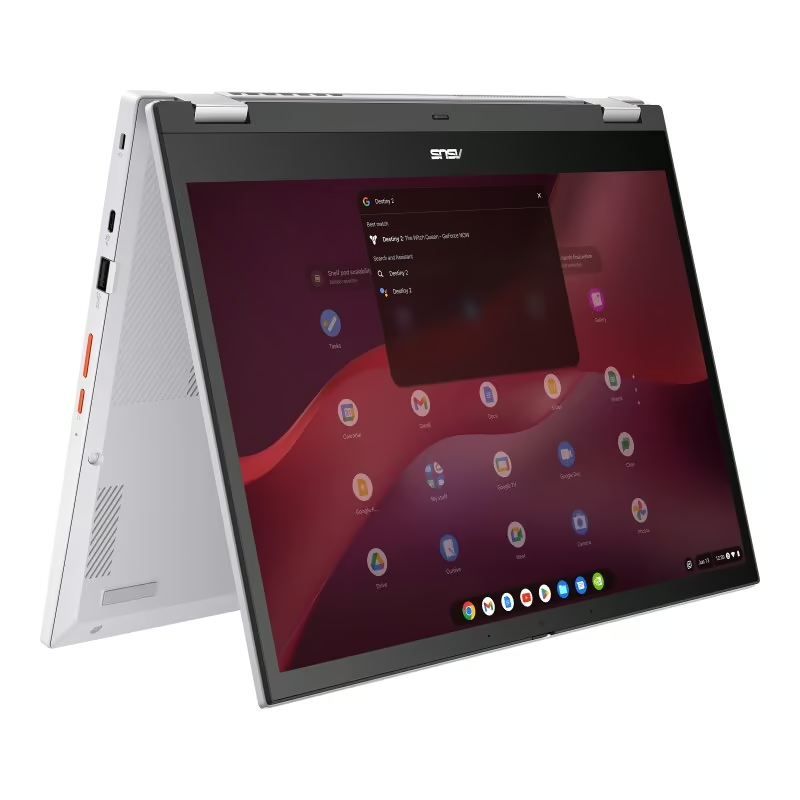
The Vibe CX34 Flip is a Pearl White convertible with a 360 degree hinge, so it works as a laptop, in tent mode or as a tablet. Its 14 inch touchscreen is a 1920 x 1200 panel running at 144Hz, rated at 400 nits and 100 percent sRGB, which is a long way ahead of the panels in ASUS’s clamshell Chromebooks. A USI stylus garages inside the chassis and charges there.
The Intel Core i5-1235U with Iris Xe graphics, 8GB of LPDDR4X and a 256GB NVMe SSD makes this one of the faster ChromeOS machines available. The 144Hz refresh rate and anti-ghosting keyboard are aimed squarely at GeForce NOW and other cloud gaming services, and HDMI 2.1, Wi-Fi 6E and Bluetooth 5.4 back that up. Harman Kardon certified speakers handle the audio side, and ASUS rates the 63Wh battery at up to 10 hours.
The catch is bulk. ASUS lists the weight from 1.81kg and the chassis is 2.09cm thick, which is heavy for a 14 inch convertible, and the webcam is still only 720p. It suits someone who wants a high-refresh cloud gaming and media machine with pen input and is willing to carry the extra weight.
Pros
- 14 inch 1920 x 1200 touchscreen at 144Hz, 400 nits and 100 percent sRGB
- Core i5-1235U with Iris Xe graphics and a 256GB NVMe SSD, fast for ChromeOS
- Garaged USI stylus included, plus a backlit anti-ghosting keyboard
- HDMI 2.1, two USB-C ports, microSD reader and Harman Kardon speakers
Cons
- Heavy for a 14 inch convertible at a stated 1.81kg
- 720p webcam is a weak point on a device built for video and gaming
- This is a North American model that ships to New Zealand from Amazon US, so delivery takes longer and it is not covered by local ASUS retail warranty
Key specs: 14.0in WUXGA 1920×1200 touch, 144Hz, 400 nits, 100% sRGB | Intel Core i5-1235U with Iris Xe | 8GB LPDDR4X | 256GB NVMe SSD | 1.81kg | 63Wh, up to 10 hours claimed
8. Samsung Galaxy Chromebook Go – Best Ultra-Portable
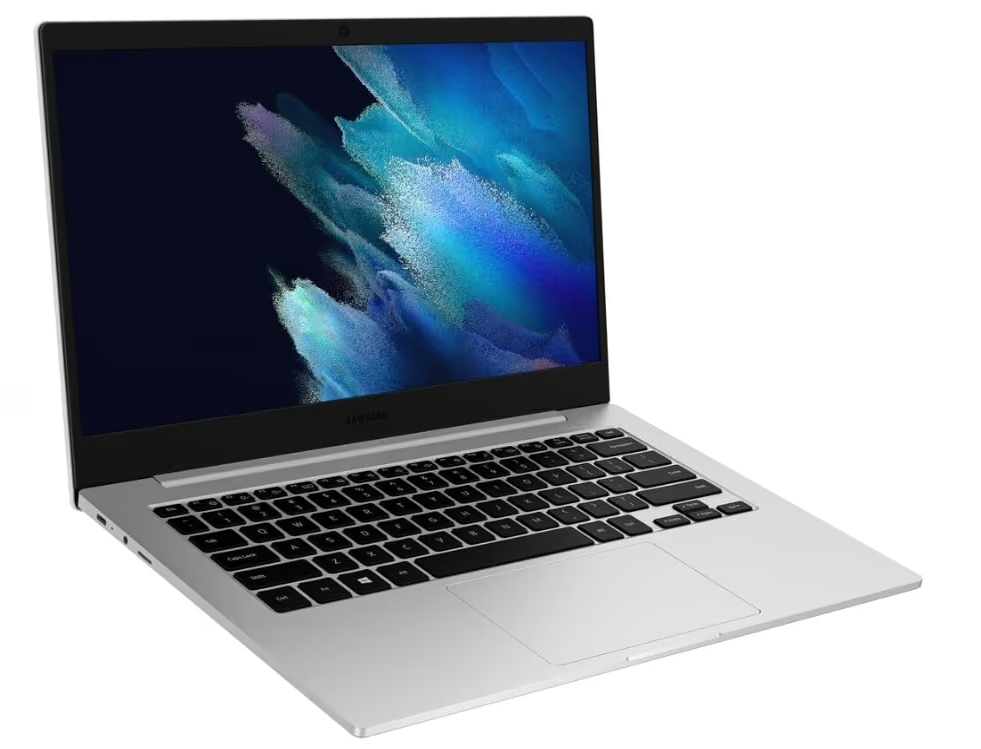
The Galaxy Chromebook Go is the most travel-minded pick here, at 1.45kg and just 15.9mm thick. Samsung has tested it against MIL-STD-810G standards and fitted a spill-resistant island-style keyboard, which is a sensible pairing for a machine that lives in a bag. The screen is a 14 inch anti-glare LCD at 1366 x 768, and a 180 degree hinge lets it lie flat for sharing.
Performance comes from an Intel Celeron N4500 running at 1.10GHz with a burst to 2.80GHz, backed by Intel UHD graphics and 4GB of on-board LPDDR4x memory. This listing is the 32GB eMMC configuration, and Samsung also sells the same machine with 64GB. The 42.3Wh battery is rated at up to 12 hours and charges over USB-C, with Wi-Fi 6, two USB-C ports, a USB 3.2 port and a microSD slot.
The limits are familiar for the category. A 1366 x 768 panel is fine for text but tight for side-by-side windows, 4GB of soldered memory cannot be increased, and 32GB of storage fills quickly unless files live in Drive. It suits someone who genuinely carries a laptop every day and values durability and battery life over screen quality.
Pros
- 1.45kg and 15.9mm thick, genuinely easy to carry
- 42.3Wh battery rated at up to 12 hours, with USB-C charging
- MIL-STD-810G tested with a spill-resistant keyboard and a 180 degree hinge
- Wi-Fi 6 plus two USB-C ports, a USB 3.2 port and a microSD slot
Cons
- 1366 x 768 resolution across 14 inches is low
- 32GB of storage on this configuration fills quickly, and the 4GB of memory is soldered
- Samsung does not list this model on its Australian or New Zealand sites, and it ships from Amazon US, so local warranty support is uncertain
Key specs: 14in 1366×768 LCD anti-glare, non-touch | Intel Celeron N4500 1.10 to 2.80GHz | 4GB LPDDR4x | 32GB eMMC | 1.45kg | 42.3Wh, up to 12 hours claimed
9. Lenovo IdeaPad 3 Chromebook – Best Large Screen
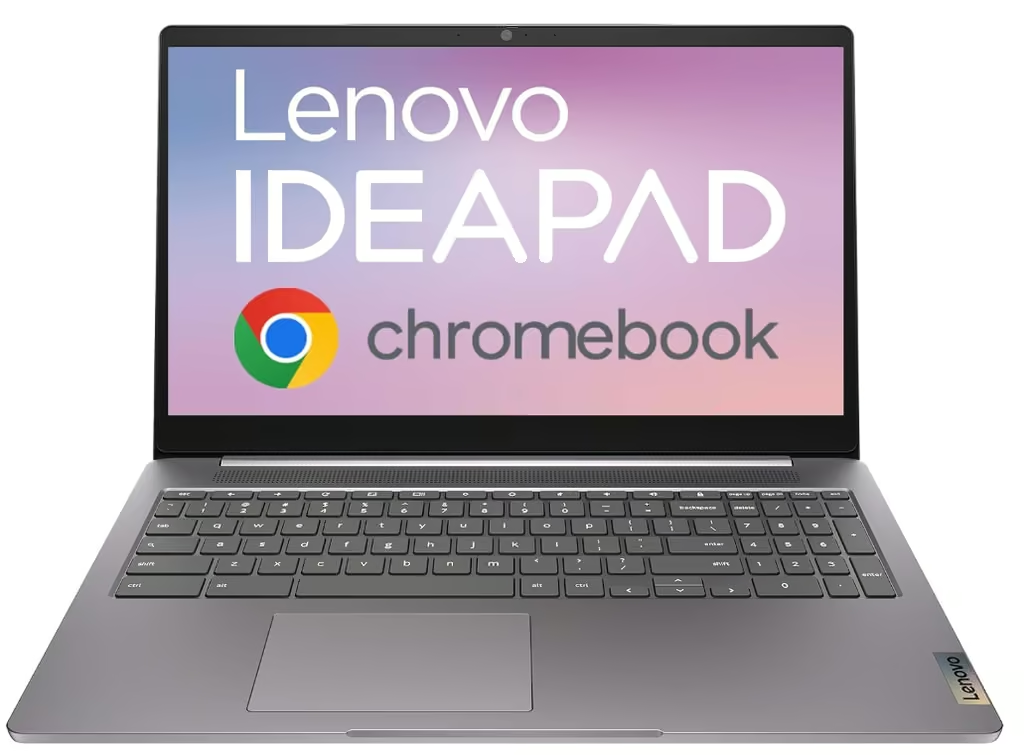
This is the 15.6 inch member of the IdeaPad 3 Chromebook family, finished in Arctic Grey with a textured PC-ABS shell. Lenovo lists the panel as a 15.6 inch Full HD 1920 x 1080 anti-glare display, and the chassis measures 362 x 243 x 18.95mm at around 1.58kg. The extra width buys a full keyboard with a numeric keypad on the right hand side, which is unusual on a Chromebook and genuinely useful for spreadsheet work.
Performance comes from an Intel Pentium Silver N6000, a four core part running at 1.1GHz with boost to 3.3GHz, backed by 8GB of soldered LPDDR4X and 128GB of eMMC 5.1 storage. Connectivity is more generous than the price bracket suggests, with two USB 3.2 Gen 1 ports, a USB-C port carrying Power Delivery and DisplayPort 1.4, full-size HDMI, a 3.5mm combo jack and a microSD reader. The 720p webcam has a physical privacy shutter, and the 47Wh battery charges over the bundled 45W USB-C adapter.
The trade-offs sit with the screen and the keyboard. Lenovo lists this configuration with a TN panel at 220 nits and no touch support, so viewing angles and brightness are modest, and the keyboard is not backlit. It suits anyone who wants a desk-based Chromebook with a big screen, a number pad and real ports, and who is happy to give up touch input and panel quality to get there.
Pros
- Full-size keyboard with a numeric keypad, rare on a Chromebook
- Strong port selection: HDMI, USB-C with DisplayPort and Power Delivery, two USB-A and microSD
- 720p webcam with a physical privacy shutter
- 47Wh battery with USB-C charging, and a reasonable 1.58kg for a 15.6 inch machine
Cons
- This configuration uses a TN panel at 220 nits with no touch support
- Keyboard is not backlit
- Ships to New Zealand from Amazon UK, so delivery takes longer and local warranty support is uncertain
Key specs: 15.6in FHD 1920×1080 TN, 220 nits, anti-glare, non-touch | Intel Pentium Silver N6000 (4 cores, up to 3.3GHz) | 8GB LPDDR4X soldered | 128GB eMMC 5.1 | around 1.58kg | 47Wh, 45W USB-C adapter
10. ASUS Chromebook Flip CX1 – Best Affordable Convertible
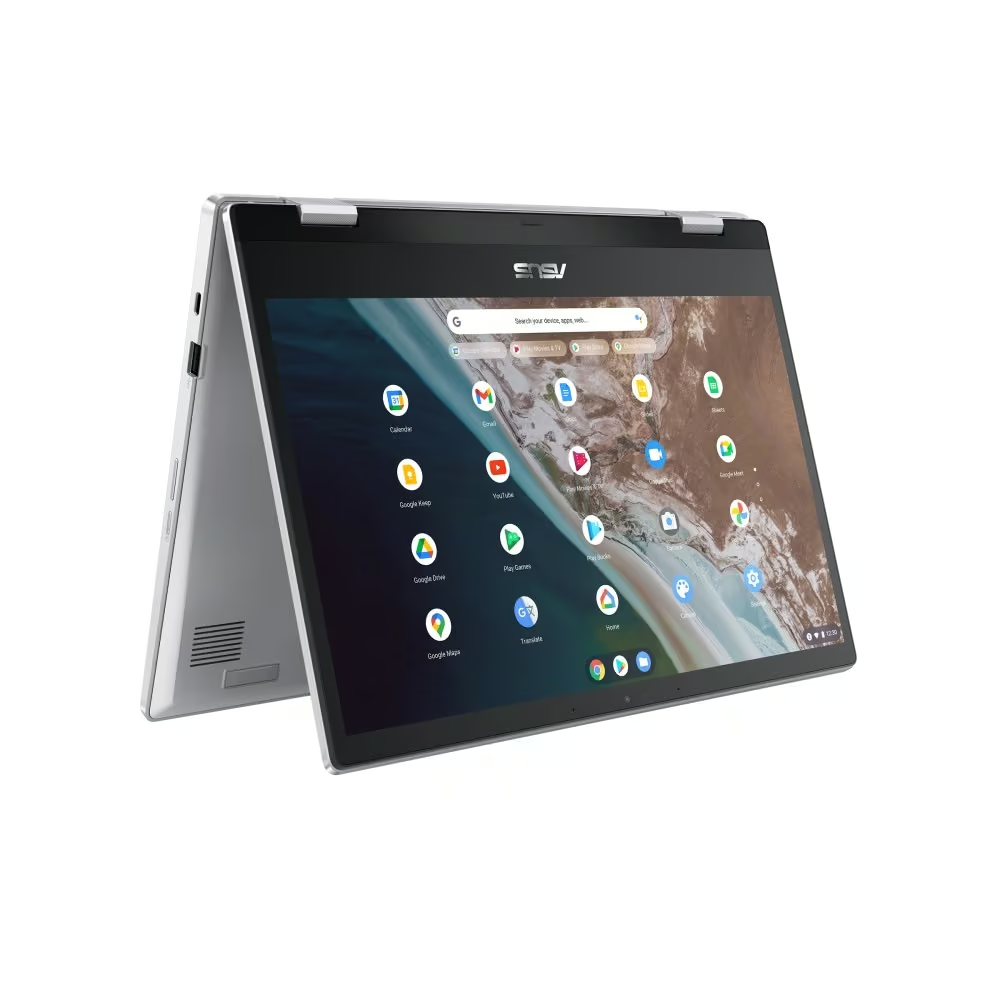
The Chromebook Flip CX1 is a 14 inch convertible built around a 360 degree hinge, so it moves between laptop, tent, stand and tablet modes without any extra hardware. ASUS lists the touchscreen as a 14 inch wide-view glossy LED-backlit panel in a Transparent Silver chassis weighing 1.63kg. ASUS rates the chassis to the MIL-STD 810H durability standard, with the hinge tested to 30,000 open-and-close cycles.
Inside is an Intel Celeron N4500 running at 1.1GHz with boost to 2.8GHz, paired with 8GB of LPDDR4X soldered to the board and 128GB of eMMC storage. That 8GB figure is worth calling out, because ASUS lists 8GB as the only memory configuration for this Flip model, so there is no risk of picking up a 4GB unit by mistake. Wi-Fi 6 and Bluetooth 5.2 handle connectivity, and ASUS quotes up to 11 hours of battery life.
The compromises are real. The keyboard is a spill-resistant chiclet unit with no backlighting, the panel is rated at only 45 percent NTSC coverage, and the memory is soldered so there is no upgrade path. It suits students and households who want tablet-style flexibility for browsing, streaming and Google Docs, rather than anyone doing colour-critical or heavy multitasking work.
Pros
- 360 degree hinge gives genuine laptop, tent, stand and tablet modes
- 8GB of RAM is standard on this Flip model, not an upgrade option
- Rated to MIL-STD 810H, with the hinge tested to 30,000 cycles
- Reasonably light for a 14 inch convertible at 1.63kg, with Wi-Fi 6 and Bluetooth 5.2
Cons
- Keyboard is not backlit, which makes dim-room typing harder
- Panel is rated at just 45 percent NTSC, so colour is modest
- This is a North American model that ships to New Zealand from Amazon US, so delivery takes longer and it is not covered by local ASUS retail warranty
Key specs: 14in FHD touchscreen, wide view, glossy, 45% NTSC | Intel Celeron N4500 (2 cores, up to 2.8GHz) | 8GB LPDDR4X onboard | 128GB eMMC | 1.63kg | ASUS-rated up to 11 hours
How to choose the best Chromebook in NZ
A Chromebook runs ChromeOS rather than Windows or macOS, so it is built around the browser, Google Workspace and Android apps. That makes it fast and low-maintenance for browsing, documents, email and streaming, and a poor fit for heavy local software such as desktop video editing or PC gaming.
Memory matters more than processor speed for most buyers. 4GB is workable for a handful of tabs and Google Docs, but 8GB is the point where a dozen tabs, a video call and a couple of Android apps stop fighting each other. If the machine is meant to last several years of schoolwork, 8GB is the safer buy.
Storage is smaller than on a Windows laptop because most files live in Drive, so 64GB to 128GB is normal. The storage type matters too, because UFS is noticeably quicker than the eMMC used in most budget models, so apps open and files copy faster than the raw capacity suggests.
Check the screen shape and resolution. A 1920 x 1200 panel in the taller 16:10 ratio shows more of a page than an older 1366 x 768 screen, which makes a real difference for reading and writing. A touchscreen is worth having if Android apps or handwritten notes are part of the plan.
Finally, check how long the machine will keep getting updates. Google gives Chromebooks released from 2021 onwards ten years of automatic updates, counted from the platform’s release date rather than the day it was bought, so a model that has been on sale for a few years has already used part of that window.
The verdict
The ASUS Chromebook Plus CX34 is the pick for most people, because the Core i5 and 256GB of storage give it a longer useful life than the entry-level machines that dominate this category. Anyone spending as little as possible should take the Lenovo Chromebook 14M8911, and anyone who can stretch a little further should take its 8GB touchscreen sibling, which is the single best value change in this guide.
For something other than a standard clamshell, the Lenovo Chromebook Duet 11 is the one to buy if a tablet that becomes a laptop suits better, and the ASUS Chromebook Vibe CX34 Flip is the only pick here built for cloud gaming, with a 144Hz screen to match. Students who need a big screen and a number pad should look at the Lenovo IdeaPad 3 Chromebook 15.6 inch instead.
Frequently Asked Questions
Are Chromebooks good enough for school and study in NZ?
For most NZ students, yes. Schools here lean heavily on Google Workspace, and a Chromebook handles Docs, Slides, Classroom, research and video calls comfortably. The limits show up with specialist software, so a student doing CAD, full video editing or subjects that require specific Windows programs is better served by a Windows laptop.
Do Chromebooks work offline?
Partly. Gmail, Google Docs, Sheets and Slides can be set to work offline and sync once a connection returns, and downloaded files and many Android apps also run without internet. A Chromebook is still designed around being connected, so anyone regularly working somewhere with poor coverage should treat offline use as a fallback rather than the normal way of working.
How much RAM does a Chromebook need?
4GB is enough for browsing, Google Docs and streaming with a modest number of tabs open. 8GB is the practical sweet spot for tab-heavy schoolwork, video calls and Android apps running at the same time. RAM is soldered on nearly every Chromebook and cannot be upgraded later, so it is worth deciding at purchase.
How long do Chromebooks keep getting updates?
Chromebooks released from 2021 onwards receive ten years of automatic ChromeOS updates. That clock runs from the platform’s release date rather than the date of purchase, so a model that has already been on shelves for two or three years has correspondingly less support time left. The date is published as the Auto Update Expiration, or AUE, for each model.
Can a Chromebook run Microsoft Office?
It can run Microsoft 365 through the browser or as Android apps, which covers Word, Excel and PowerPoint for everyday work. The full desktop versions of Office do not install on ChromeOS. Anyone who depends on advanced Excel macros or heavy formatting work should test their specific files before committing.
Can Chromebooks run Android apps?
Most current Chromebooks include the Google Play Store and run Android apps alongside web apps. They work best on a touchscreen model, since many Android apps are designed for finger input and feel awkward driven by a trackpad. Not every app scales neatly to a laptop screen, so results vary by app.