
The best laptop docking station in NZ overall is the UGREEN Revodok Pro 210, a 10-in-1 hub with two HDMI outputs that can run 4K at 60Hz together, Gigabit Ethernet, SD and microSD slots and 85W of pass-through charging. Wired Ethernet is the underrated port here, because a fixed line still beats patchy home Wi-Fi on a video call, and plenty of New Zealand homes have fibre landing in a router two rooms away.
A good docking station turns a single USB-C or Thunderbolt cable into a full desktop setup, adding extra monitors, wired networking, card readers and faster charging without a tangle of separate adapters.
We’ve compared 10 laptop docking stations available in New Zealand, from budget dual-HDMI hubs to Thunderbolt 5 powerhouses, so you can match port selection, display support and charging power to how you actually work.
Comparison Table
| Product | Best For | Key Specs |
|---|---|---|
| UGREEN Revodok Pro 210 10-in-1 USB-C Docking Station | Best Overall | Ports: 2x HDMI (dual 4K@60Hz or single 8K@30Hz), 1x USB-C 5Gbps, 1x USB-A 5Gbps, 2x USB-A 2.0, Gigabit Ethernet, SD/TF | Charging: 100W USB-C PD input (up to 85W pass-through) | Compatibility: Windows (extended), Mac (mirror only) |
| Selore 17-in-1 USB-C Dock, Triple 4K Docking Station | Best for Triple 4K Monitors | Ports: 3x HDMI, 2x DisplayPort, 2x USB-C, 4x USB-A 10Gbps + 2x USB-A 2.0, Gigabit Ethernet, SD/microSD, 3.5mm audio | Charging: 100W USB-C PD input (up to 85W pass-through) | Max resolution: Triple 4K (Windows, driver required) |
| UGREEN Revodok 206 6-in-1 USB-C Docking Station | Best Budget Pick | Ports: 2x HDMI, 1x USB-C 5Gbps data, 2x USB-A data | Charging: 100W USB-C PD input (up to 85W pass-through) | Max resolution: Dual 4K@60Hz (Windows) or single 8K@30Hz |
| WAVLINK 12-in-1 USB-C Hub with M.2 SSD Enclosure | Best for MacBook | Ports: 2x HDMI + 1x DisplayPort, USB 3.2 Gen2 10Gbps, USB-A 5Gbps, 2.5Gbps Ethernet, SD/microSD, M.2 SSD bay | Charging: 100W PD pass-through (separate charger required) | Max resolution: Triple 4K@60Hz (Windows), single extended display (Mac) |
| D-Link DUF-901 9-in-1 USB4 Docking Station | Best Thunderbolt 4 | Ports: 2x DisplayPort 1.4 (8K), USB4 40Gbps, USB-C PD, USB 3.0 ports, 2.5GbE Ethernet | Charging: 100W USB-C PD | Max resolution: Dual 8K DisplayPort |
| WAVLINK Thunderbolt 5 Dock, 140W PD | Best High-Power Charging | Ports: 4x USB-A 10Gbps, SD 4.0, 2.5Gbps Ethernet, Thunderbolt 5 host | Charging: 140W PD (host), up to 30W downstream | Max resolution: Single 8K@144Hz or Triple 4K@144Hz (Windows, TB5 required) |
| Rocketek Triple Display Docking Station for Surface | Best for Microsoft Surface Devices | Ports: HDMI (4K@60Hz), DisplayPort (4K@30Hz), VGA (1080p@60Hz), 3x USB-A 3.0, Gigabit Ethernet, SD/TF | Charging: 100W USB-C PD | Compatibility: Surface Pro/Laptop/Laptop Go/Laptop Studio/Book |
| BENFEI Laptop Stand with USB-C 6-in-1 Docking Station | Best Compact Travel Dock | Ports: 1x HDMI 4K@60Hz, 4x USB 3.0 | Charging: up to 90W USB-C PD pass-through | Extras: adjustable aluminium laptop stand (68-178mm) |
| AV Access iDock P10 KVM Docking Station, 2 Monitors 2 PC | Best for Business/Enterprise (Dual-PC KVM Switching) | Ports: HDMI & DisplayPort video, Gigabit Ethernet, USB 3.0/2.0, USB-C, SD card reader | Charging: 65W USB-C PD | Max resolution: 4K@60Hz / 1440p@144Hz / 1080p@240Hz, 2-PC KVM switching |
| NOVOO 15-in-1 USB-C Docking Station, Dual 4K@60Hz | Best for Dual 4K Monitors | Ports: 2x HDMI 4K@60Hz, VGA, 2x USB-C (5Gbps + PD), 3x USB-A 3.0, 2x USB-A 2.0, Gigabit Ethernet, SD/microSD | Charging: 100W USB-C PD (up to 85W output) | Compatibility: Windows (extended multi-display), Mac (mirror/single extend) |
1. UGREEN Revodok Pro 210 10-in-1 USB-C Docking Station
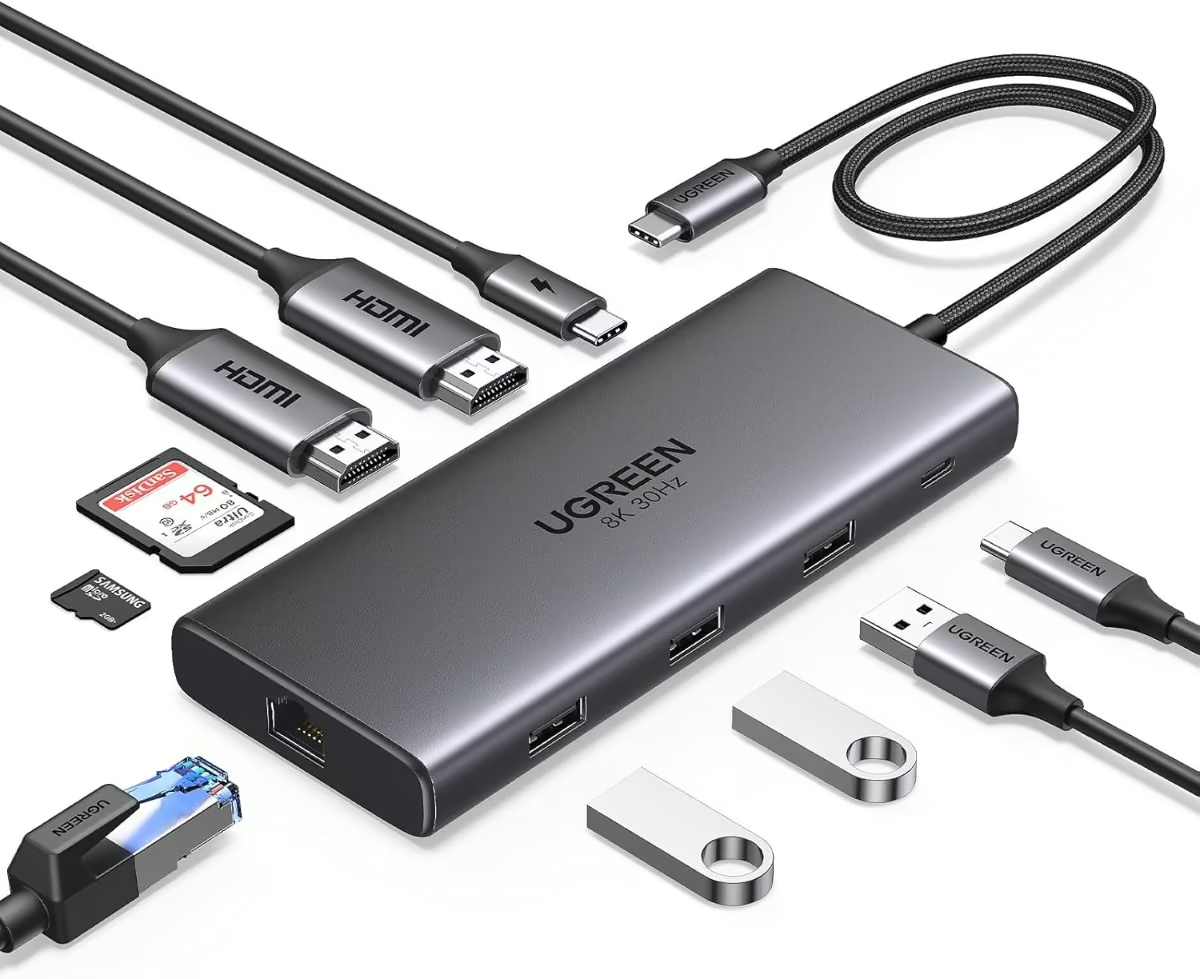
The UGREEN Revodok Pro 210 packs ten connections into a compact hub, giving Windows laptop owners two HDMI outputs, a Gigabit Ethernet jack, SD and microSD slots and a full set of USB-A and USB-C data ports from a single cable.
Both HDMI ports can run at 4K@60Hz together, or the second port can push a single 8K@30Hz signal on supported Windows systems. A 100W USB-C PD input passes through up to 85W to charge the host laptop, and 5Gbps USB-A/USB-C data ports handle everyday file transfers without fuss.
MacBook owners can use it too, but Apple’s silicon limits both external displays to mirrored output rather than true independent extended desktops, so the dual-HDMI advantage mostly benefits Windows users.
Two of the ten ports are only USB 2.0, and there is no bundled power adapter, so charging speed depends entirely on whatever USB-C charger the buyer already owns.
Pros
- Ten ports covering dual HDMI, Ethernet, card readers and USB-A/C data in one compact unit
- 100W PD pass-through keeps the laptop charged while docked
- Broad Windows-laptop compatibility including ThinkPad, HP and Chromebook
- Plug-and-play setup with no drivers needed for basic use
Cons
- MacBooks are limited to mirrored, not extended, dual-monitor output
- Two of the USB-A ports are capped at USB 2.0 speeds
- No bundled power adapter included
Key specs:Ports: 2x HDMI (dual 4K@60Hz or single 8K@30Hz), 1x USB-C 5Gbps, 1x USB-A 5Gbps, 2x USB-A 2.0, Gigabit Ethernet, SD/TF | Charging: 100W USB-C PD input (up to 85W pass-through) | Compatibility: Windows (extended), Mac (mirror only)
2. Selore 17-in-1 USB-C Dock, Triple 4K Docking Station
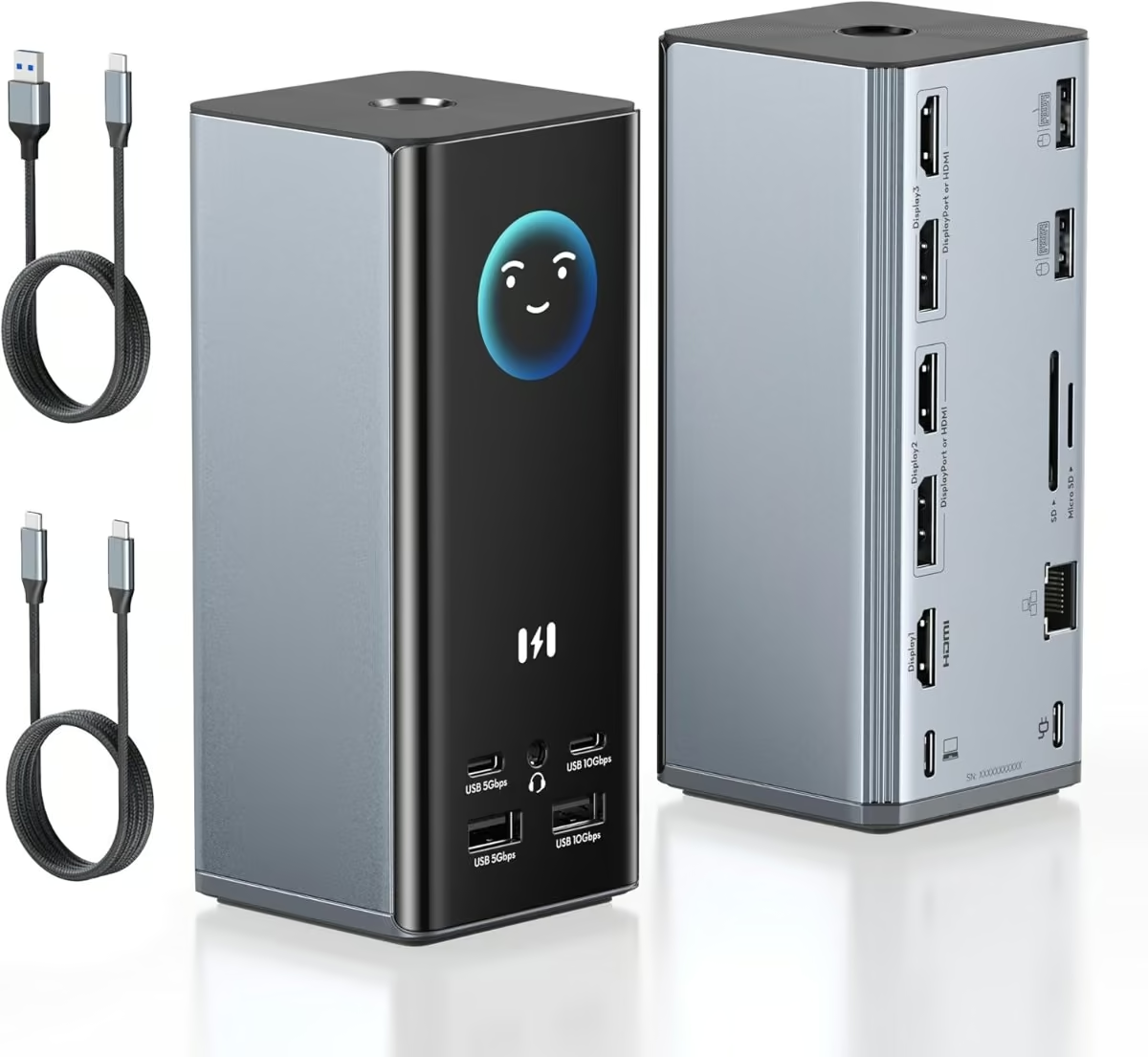
Selore’s 17-in-1 dock is built specifically around triple-monitor workflows, fitting three HDMI outputs and two DisplayPort outputs onto one unit where most rivals stop at two video outputs.
Each of the three displays can run at 4K, with Windows users getting true independent extended desktops via Multi-Stream Transport while macOS is restricted to mirroring or a maximum of two screens depending on the Mac model. A small LCD readout on the dock shows charging wattage, resolution and connection status at a glance.
A 100W PD input passes through up to 85W to the host laptop, and the built-in Gigabit Ethernet plus 10Gbps USB-A/USB-C data ports keep networking and file transfers fast even with three screens running.
Getting full triple-monitor support on Windows means installing the manufacturer’s driver for the second and third displays, so it is not pure plug-and-play, and the price sits well above the market’s basic dual-HDMI hubs.
Pros
- Genuine triple 4K output via 3x HDMI + 2x DisplayPort
- Built-in LCD shows charging wattage, resolution and port status
- 10Gbps USB-A/USB-C data plus Gigabit Ethernet
- One-touch privacy screen lock, useful for hot-desking
Cons
- Requires driver installation for full triple-monitor support on Windows
- macOS support limited to mirroring or two screens at most
- Pricier than basic dual-HDMI hubs
Key specs:Ports: 3x HDMI, 2x DisplayPort, 2x USB-C, 4x USB-A 10Gbps + 2x USB-A 2.0, Gigabit Ethernet, SD/microSD, 3.5mm audio | Charging: 100W USB-C PD input (up to 85W pass-through) | Max resolution: Triple 4K (Windows, driver required)
3. UGREEN Revodok 206 6-in-1 USB-C Docking Station
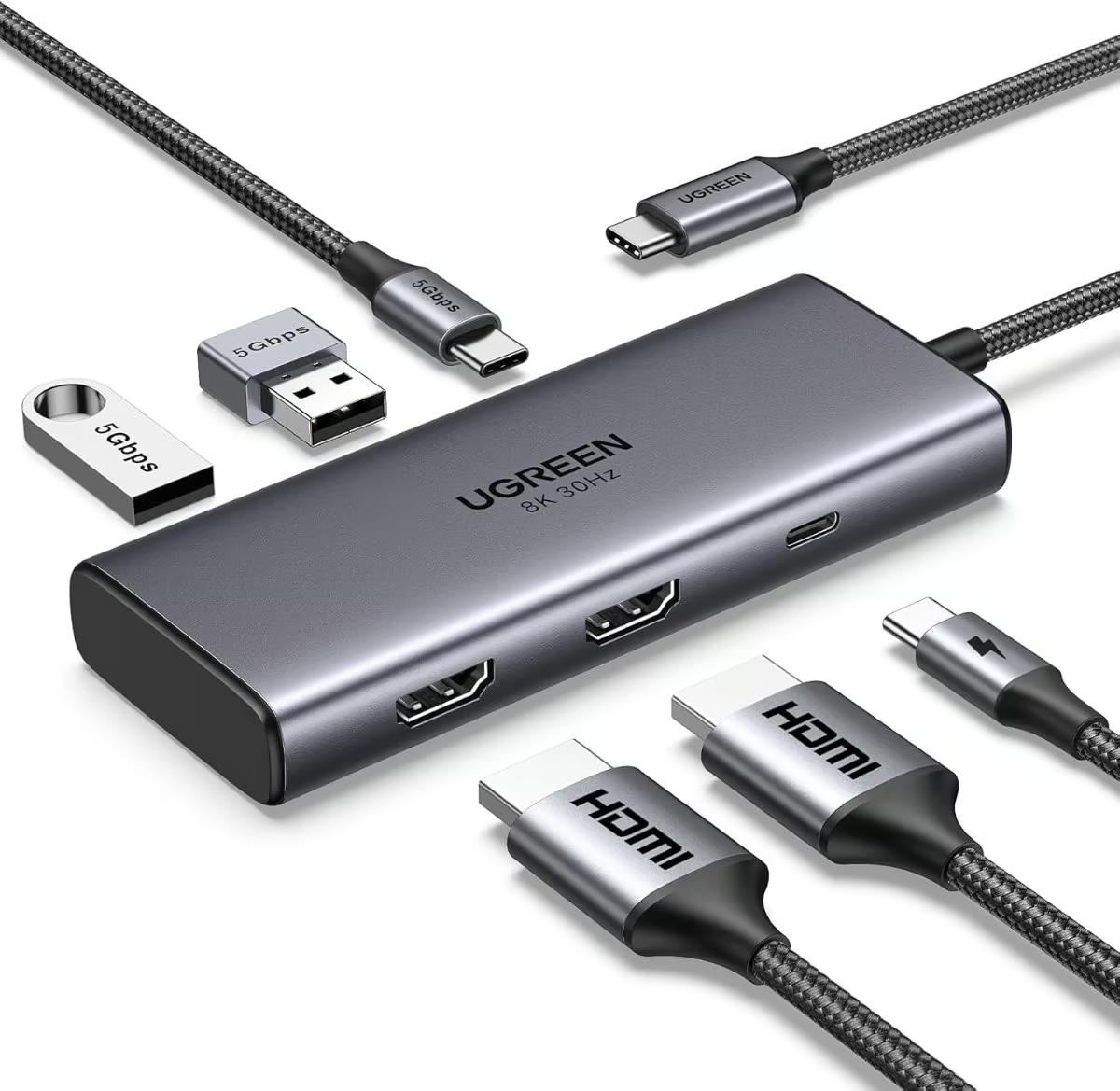
The Revodok 206 trims UGREEN’s line-up down to the essentials: two HDMI outputs, a 100W USB-C PD pass-through, a 5Gbps USB-C data port and two USB-A ports, all wrapped in a small aluminium shell that adds little bulk to a bag.
Windows laptops with a recent Intel CPU and a DP1.4-capable USB-C port can drive both HDMI outputs at 4K@60Hz simultaneously, or push a single 8K@30Hz signal through the second HDMI port. Pass-through charging tops out around 85W to the host laptop, which covers most ultrabooks.
Mac owners should treat this as a mirroring-only accessory, since Apple’s silicon does not allow the Revodok 206 to run two independent extended desktops, both external screens simply duplicate the same image.
It undercuts most 10-plus-port docks on this list, though buyers get a shorter port list in return, with no Ethernet or card reader included.
Pros
- Genuinely budget-priced yet still supports dual 4K@60Hz on Windows
- Compact aluminium build that is easy to pack
- 100W PD pass-through keeps the laptop charged while docked
- Simple plug-and-play, no drivers for basic HDMI output
Cons
- Extended dual-monitor mode only works on Windows, Mac is mirror-only
- No Ethernet port or memory card slot
- Dual 4K@60Hz needs a fairly recent CPU/GPU combination to hit full spec
Key specs:Ports: 2x HDMI, 1x USB-C 5Gbps data, 2x USB-A data | Charging: 100W USB-C PD input (up to 85W pass-through) | Max resolution: Dual 4K@60Hz (Windows) or single 8K@30Hz
4. WAVLINK 12-in-1 USB-C Hub with M.2 SSD Enclosure
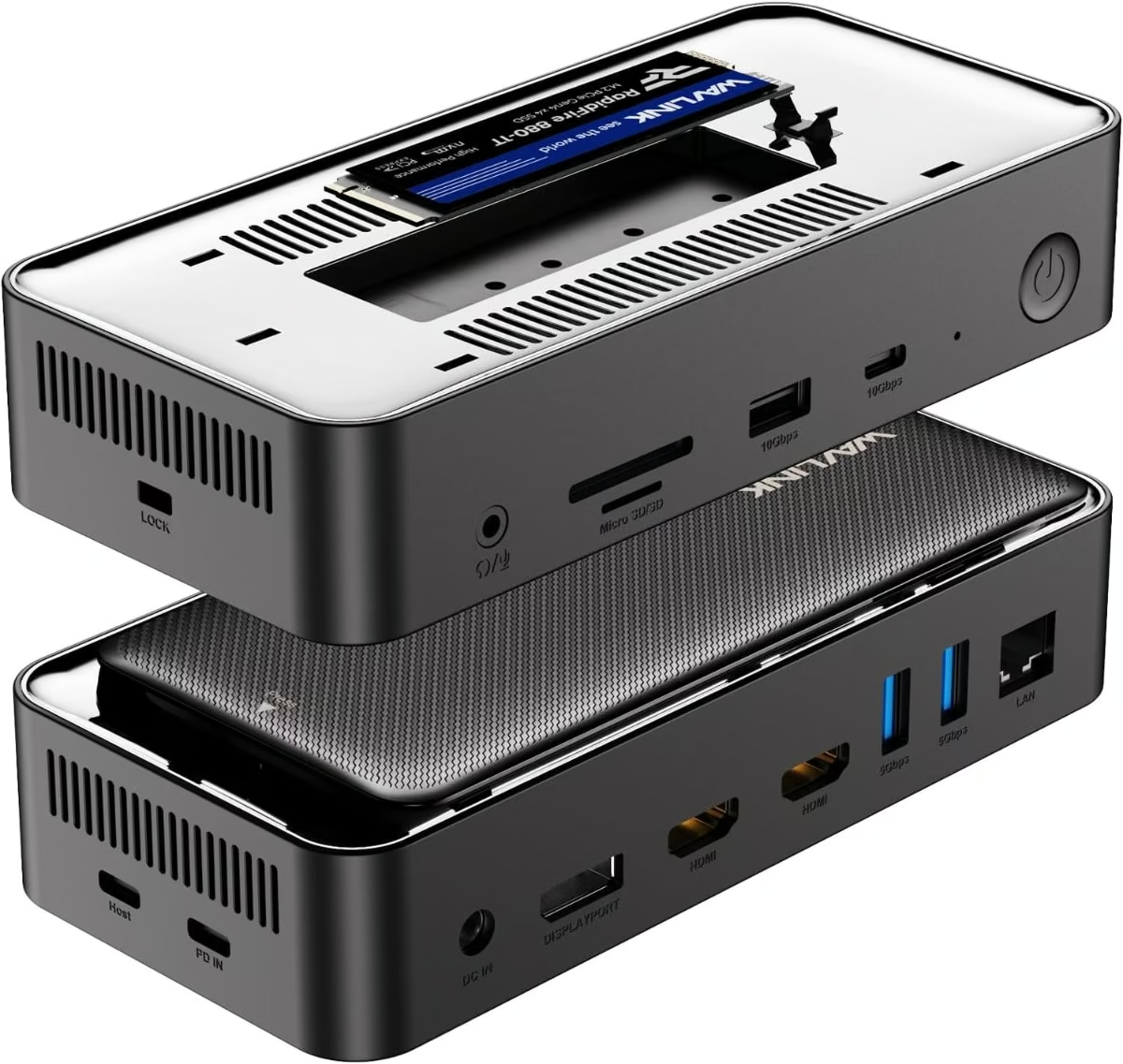
WAVLINK’s 12-in-1 dock is aimed squarely at the Mac crowd, adding a built-in M.2 NVMe/SATA SSD enclosure alongside the usual HDMI, DisplayPort, Ethernet and card-reader ports, effectively turning the dock into external storage as well as a display hub.
It ships with its own 40W power adapter purely to run the dock and SSD independently of the laptop, reducing the chance of dropouts or screen flicker when several high-power peripherals are active at once. Charging the host laptop itself still requires plugging a separate 100W-capable USB-C charger into the dock’s PD input port.
On Apple silicon MacBooks and Mac minis (M1 through M4), only one external display can run in true extended mode, connecting two or three monitors will just mirror the same picture across them. Windows laptops fare better, supporting triple 4K@60Hz extended desktops across the two HDMI ports and DisplayPort.
The charging setup is a little more involved than a single-cable dock, with two separate power inputs to think about, and the single-external-monitor cap on macOS will disappoint anyone hoping for a true triple-screen Mac setup.
Pros
- Built-in M.2 NVMe/SATA SSD enclosure adds fast external storage
- Independent 40W power adapter keeps multiple peripherals stable
- Triple 4K@60Hz extended display support for Windows laptops
- Broad compatibility across Thunderbolt 3/4 and USB-C laptops
Cons
- macOS limited to a single extended external display
- Requires a separate USB-C PD charger for laptop charging on top of the dock’s own power brick
- Extra cost and complexity for anyone who does not need the SSD enclosure
Key specs:Ports: 2x HDMI + 1x DisplayPort, USB 3.2 Gen2 10Gbps, USB-A 5Gbps, 2.5Gbps Ethernet, SD/microSD, M.2 SSD bay | Charging: 100W PD pass-through (separate charger required) | Max resolution: Triple 4K@60Hz (Windows), single extended display (Mac)
5. D-Link DUF-901 9-in-1 USB4 Docking Station
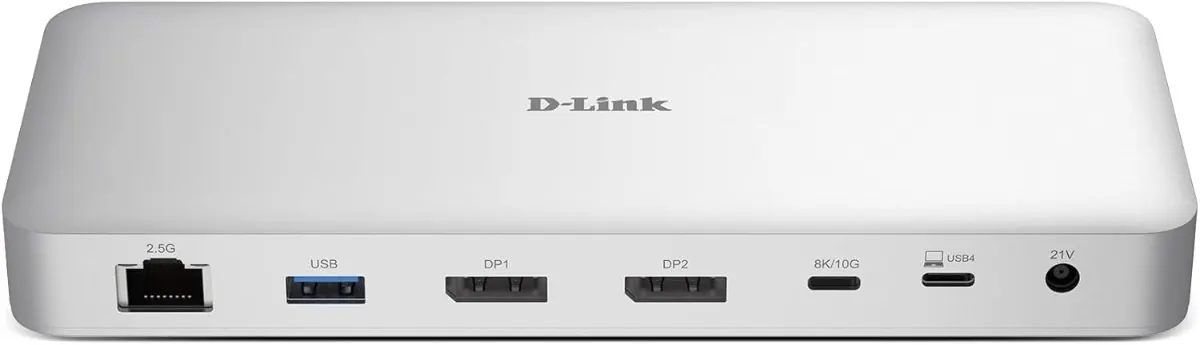
D-Link brings its networking pedigree to the docking space with the DUF-901, a nine-port USB4 hub built around dual 8K-capable DisplayPort outputs and a fast 40Gbps data connection.
The dock’s 2.5GbE Ethernet port outstrips the Gigabit LAN found on most rivals here, and its 100W USB-C PD input can keep a demanding laptop topped up while multiple peripherals are attached. A single button on the aluminium chassis switches every connected port off at once, a handy touch for anyone wanting to fully de-power the dock overnight.
Aimed at users with a genuine Thunderbolt/USB4 port, the DUF-901 supports dual DisplayPort 1.4 monitors running up to 8K, either extended or mirrored, with an aluminium shell and ventilation designed to keep the electronics cool under sustained high-bandwidth use.
It is priced well above the basic USB-C hubs on this list, and buyers without a true USB4/Thunderbolt port on their laptop will not get anywhere near its rated 40Gbps transfer speed, dropping back to standard USB-C throughput instead.
Pros
- Dual 8K-capable DisplayPort outputs, extend or mirror
- Genuine 40Gbps USB4/Thunderbolt-compatible transfer speed
- 2.5GbE Ethernet, faster than the Gigabit ports on most competing docks
- Centralised power button switches all connected devices off together
Cons
- Significantly pricier than standard USB-C hub-style docks
- Full performance requires a genuine Thunderbolt/USB4-equipped laptop
- Limited stock seen at time of review
Key specs:Ports: 2x DisplayPort 1.4 (8K), USB4 40Gbps, USB-C PD, USB 3.0 ports, 2.5GbE Ethernet | Charging: 100W USB-C PD | Max resolution: Dual 8K DisplayPort
6. WAVLINK Thunderbolt 5 Dock, 140W PD
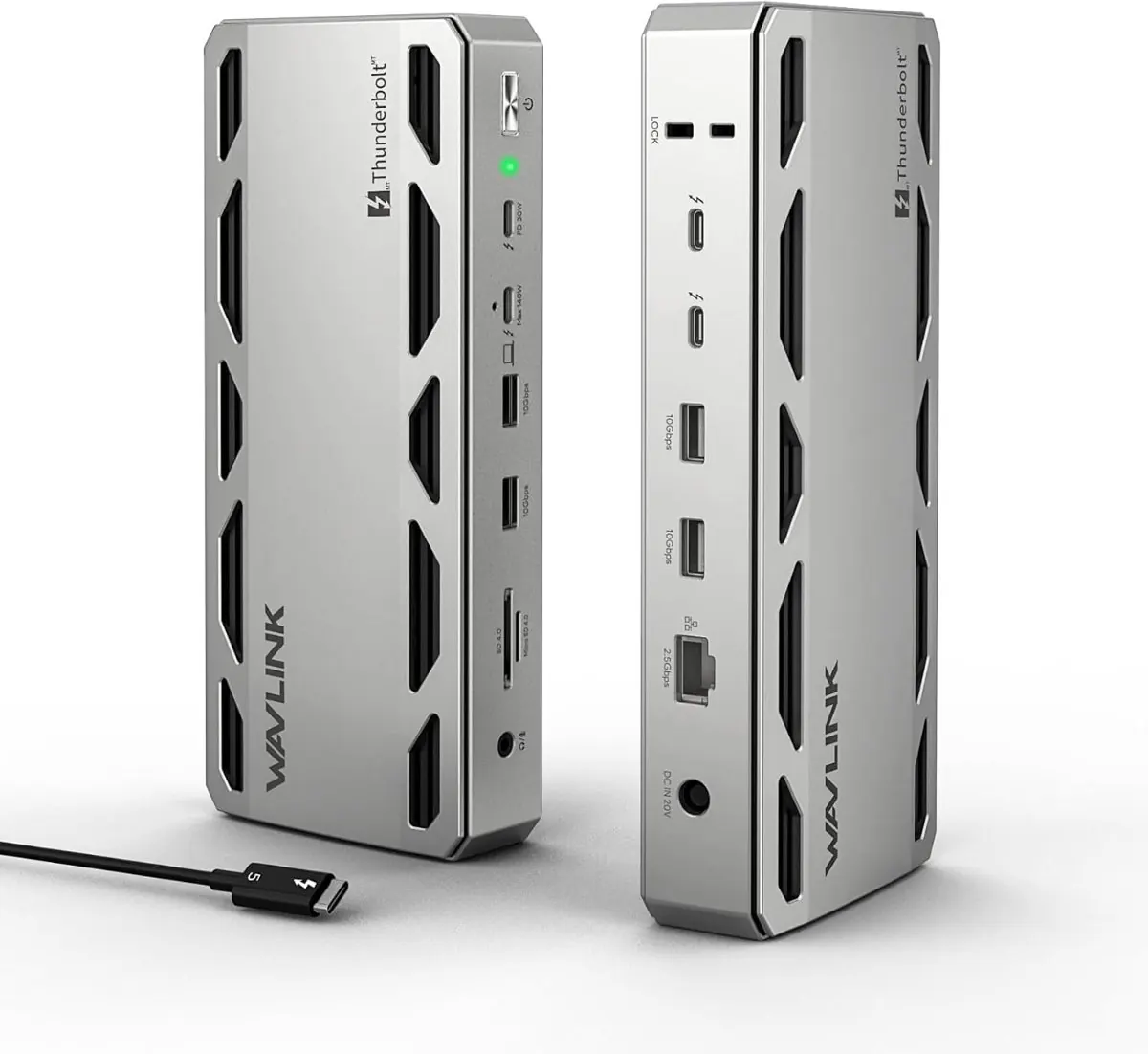
WAVLINK’s Thunderbolt 5 dock sits at the premium end of this list, built around Intel-certified TB5 connectivity with a headline 140W of power delivery to the host laptop, more than any other dock reviewed here.
Display support scales with the host hardware: Windows 11 machines with a genuine TB5 port can drive a single 8K screen at 144Hz, dual 8K screens at 60Hz, or triple 4K panels at 144Hz, while Mac users get up to dual 6K@60Hz on M1-M4 Pro/Max chips (base M1/M2 chips are limited to a single 4K@60Hz display). Four USB-A 3.2 Gen2 ports, a fast SD 4.0 card reader and 2.5Gbps Ethernet round out the connectivity.
The rated 120Gbps bandwidth is genuinely useful for creative professionals shifting large video files or running multiple high-refresh monitors simultaneously, and downstream USB-C ports can trickle-charge phones and accessories at up to 30W.
This performance comes at a steep price, well above every other dock on this list, and several headline features such as triple display or 8K/144Hz require a specific combination of Windows 11 23H2+, a genuine TB5 port and DSC support on both laptop and monitor, so buyers should check their own hardware before expecting the top-end numbers.
Pros
- Intel-certified Thunderbolt 5 with up to 120Gbps bandwidth
- 140W power delivery, the highest charging output on this list
- Flexible display support up to single 8K@144Hz or triple 4K@144Hz (Windows)
- Fast SD 4.0 card reader and 2.5Gbps Ethernet included
Cons
- Most expensive dock on this list by a wide margin
- Top-tier display modes need a genuine TB5 port and current Windows 11/macOS versions
- Overkill for anyone without a Thunderbolt 4/5 laptop to match it
Key specs:Ports: 4x USB-A 10Gbps, SD 4.0, 2.5Gbps Ethernet, Thunderbolt 5 host | Charging: 140W PD (host), up to 30W downstream | Max resolution: Single 8K@144Hz or Triple 4K@144Hz (Windows, TB5 required)
7. Rocketek Triple Display Docking Station for Surface
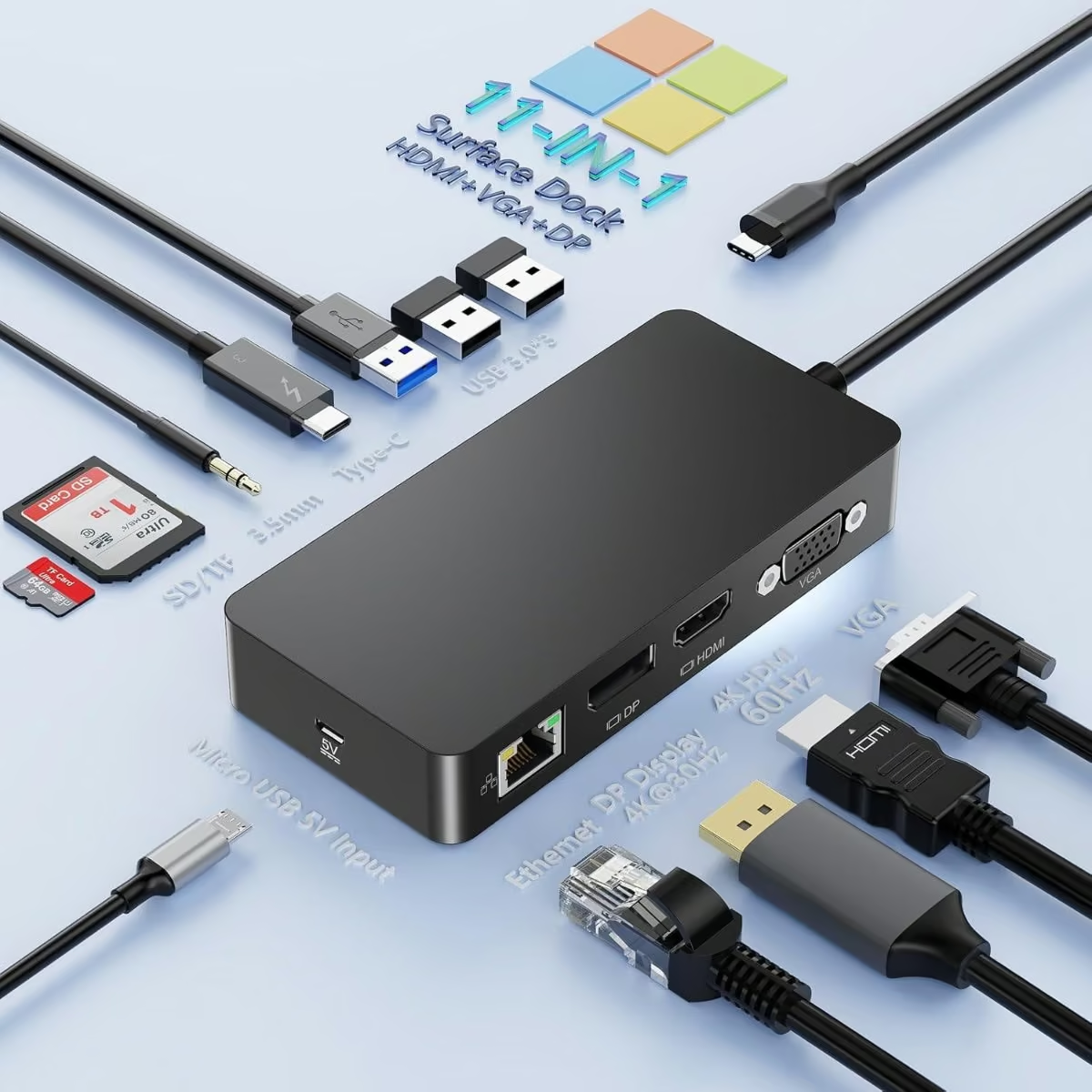
This Rocketek-made dock is purpose-built for Microsoft’s Surface line, listing compatibility with Surface Pro 7 through 11, several generations of Surface Laptop, Surface Laptop Go, Laptop Studio and Surface Book.
It drives triple displays through a combination of HDMI (4K@60Hz), DisplayPort (4K@30Hz) and VGA (1080p@60Hz), a useful spread for offices still running older VGA monitors alongside newer 4K screens. Three USB-A 3.0 ports, SD and TF card readers, a Gigabit Ethernet port and a 3.5mm audio jack round out an 11-port layout.
A separate USB-C port handles up to 100W of charging and data transfer for the host device, though it does not carry video, all display output runs through the dedicated HDMI, DP and VGA ports instead.
Buyers should note this is a third-party accessory made by Rocketek rather than an official Microsoft product, and the DisplayPort output is capped at 4K@30Hz rather than 60Hz, behind some rival docks at this price.
Pros
- Wide compatibility across many generations of Surface Pro, Laptop, Laptop Go and Laptop Studio
- Triple display support spanning HDMI, DisplayPort and VGA
- 100W USB-C charging plus Gigabit Ethernet and dual card readers
- 12-month warranty included
Cons
- Third-party accessory, not an official Microsoft-branded dock
- DisplayPort output limited to 4K@30Hz rather than 60Hz
- USB-C port handles charging and data only, no video passthrough
Key specs:Ports: HDMI (4K@60Hz), DisplayPort (4K@30Hz), VGA (1080p@60Hz), 3x USB-A 3.0, Gigabit Ethernet, SD/TF | Charging: 100W USB-C PD | Compatibility: Surface Pro/Laptop/Laptop Go/Laptop Studio/Book
8. BENFEI Laptop Stand with USB-C 6-in-1 Docking Station
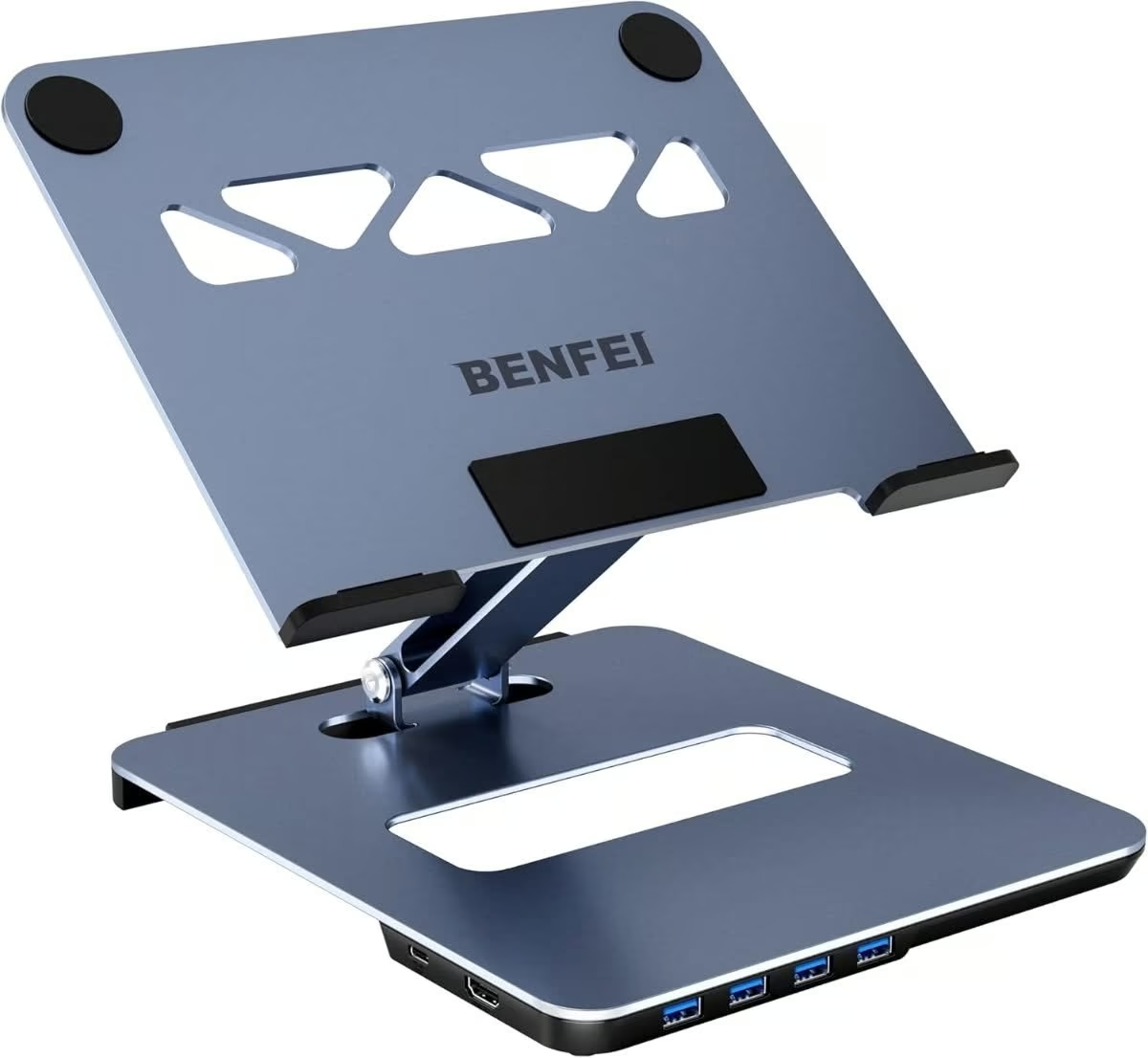
BENFEI combines a folding aluminium laptop stand with a compact 6-in-1 USB-C dock, so instead of a separate riser and hub cluttering a desk, the two functions live in one unit.
The stand adjusts from 68mm to 178mm in height with an anti-skid silicone lining to keep the laptop from sliding, while the built-in dock adds a 4K@60Hz HDMI output, four USB 3.0 ports and up to 90W of USB-C pass-through charging.
Because everything clips onto the stand rather than trailing as a separate cable puck, it is a tidy option for travellers or hot-deskers who want to raise their laptop to eye level and add a monitor and peripherals without packing multiple accessories.
The port count is modest next to the 10-plus-port docks on this list, there is no Ethernet port or card reader, and it only outputs to a single external display, so it suits a simple one-monitor setup rather than a multi-screen workstation.
Pros
- Combines an adjustable laptop stand with a docking hub in one product
- Height adjusts from 68mm to 178mm with anti-skid silicone grip
- Up to 90W USB-C pass-through charging
- 18-month warranty
Cons
- Only a single HDMI video output, no multi-monitor support
- No Ethernet port or SD/TF card reader
- Fewer total ports than dedicated multi-port docks
Key specs:Ports: 1x HDMI 4K@60Hz, 4x USB 3.0 | Charging: up to 90W USB-C PD pass-through | Extras: adjustable aluminium laptop stand (68-178mm)
9. AV Access iDock P10 KVM Docking Station, 2 Monitors 2 PC
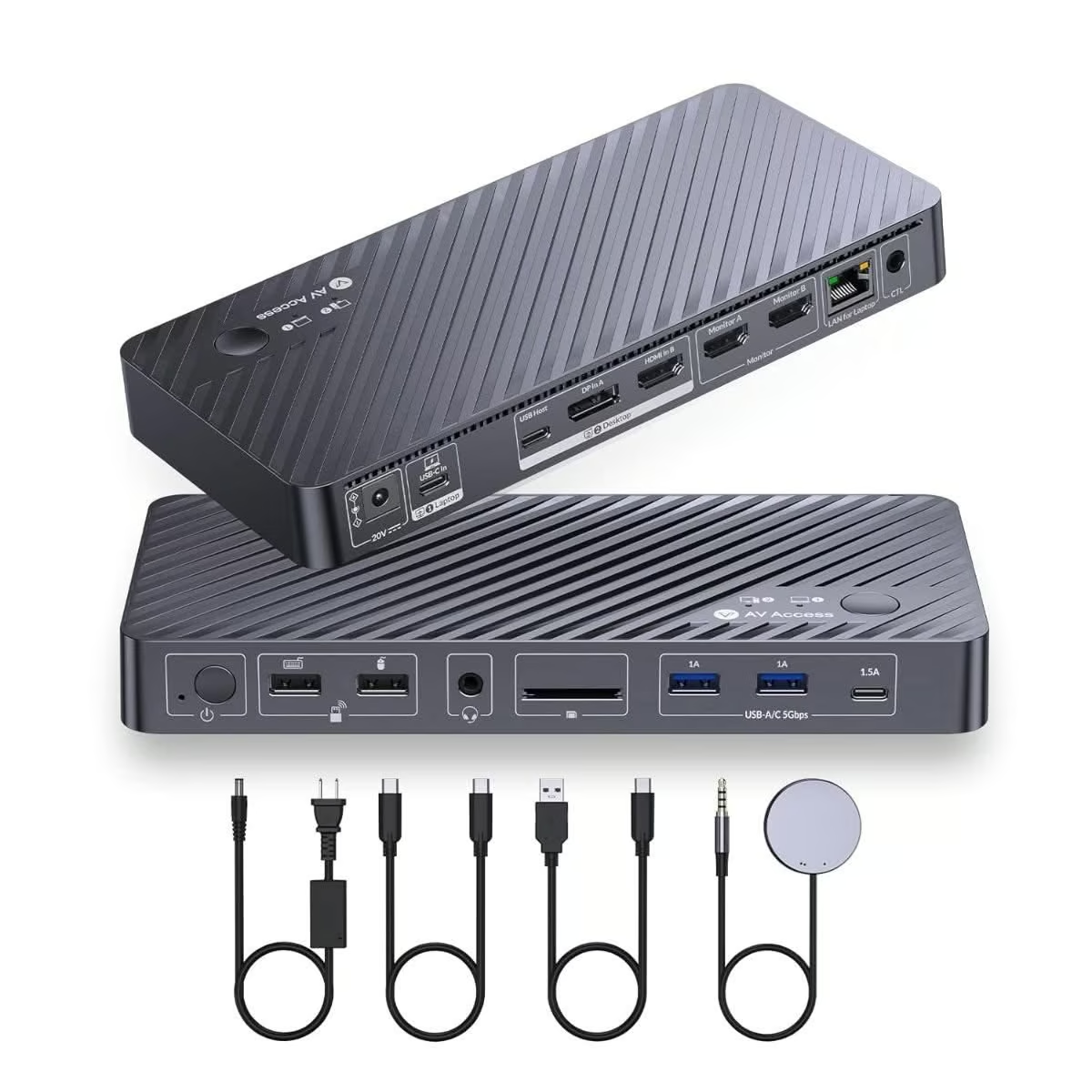
AV Access’s iDock P10 is less a conventional laptop dock and more a KVM switch built around one, letting a single keyboard, mouse and pair of monitors serve both a USB-C laptop and a separate desktop PC.
Switching between the two connected computers takes one press of a button on the unit or the bundled remote, with EDID emulation and hardware wake-up support designed to avoid the display flicker and resolution resets that cheaper KVM switches are prone to. Video output scales up to 4K@60Hz, 1440p@144Hz or 1080p@240Hz depending on the connected monitors.
Beyond the switching function it behaves like a normal dock too, with a Gigabit LAN port, SD card reader, 3.5mm audio jack and a mix of USB 3.0/2.0 ports, plus 65W USB-C charging for the laptop side of the setup.
The 65W charging ceiling is lower than the 100W-plus docks elsewhere on this list, macOS is restricted to mirrored output only, and the price reflects its specialised KVM hardware rather than a simple hub.
Pros
- True 2-PC, 2-monitor KVM switching from one keyboard/mouse setup
- EDID emulation and hardware wake-up reduce switching glitches
- Button or remote-control switching between laptop and desktop
- Gigabit Ethernet, SD card reader and 3.5mm audio included
Cons
- Charging capped at 65W, lower than most other docks here
- macOS limited to mirrored output only
- Higher price reflects its niche KVM function rather than general hub use
Key specs:Ports: HDMI & DisplayPort video, Gigabit Ethernet, USB 3.0/2.0, USB-C, SD card reader | Charging: 65W USB-C PD | Max resolution: 4K@60Hz / 1440p@144Hz / 1080p@240Hz, 2-PC KVM switching
10. NOVOO 15-in-1 USB-C Docking Station, Dual 4K@60Hz
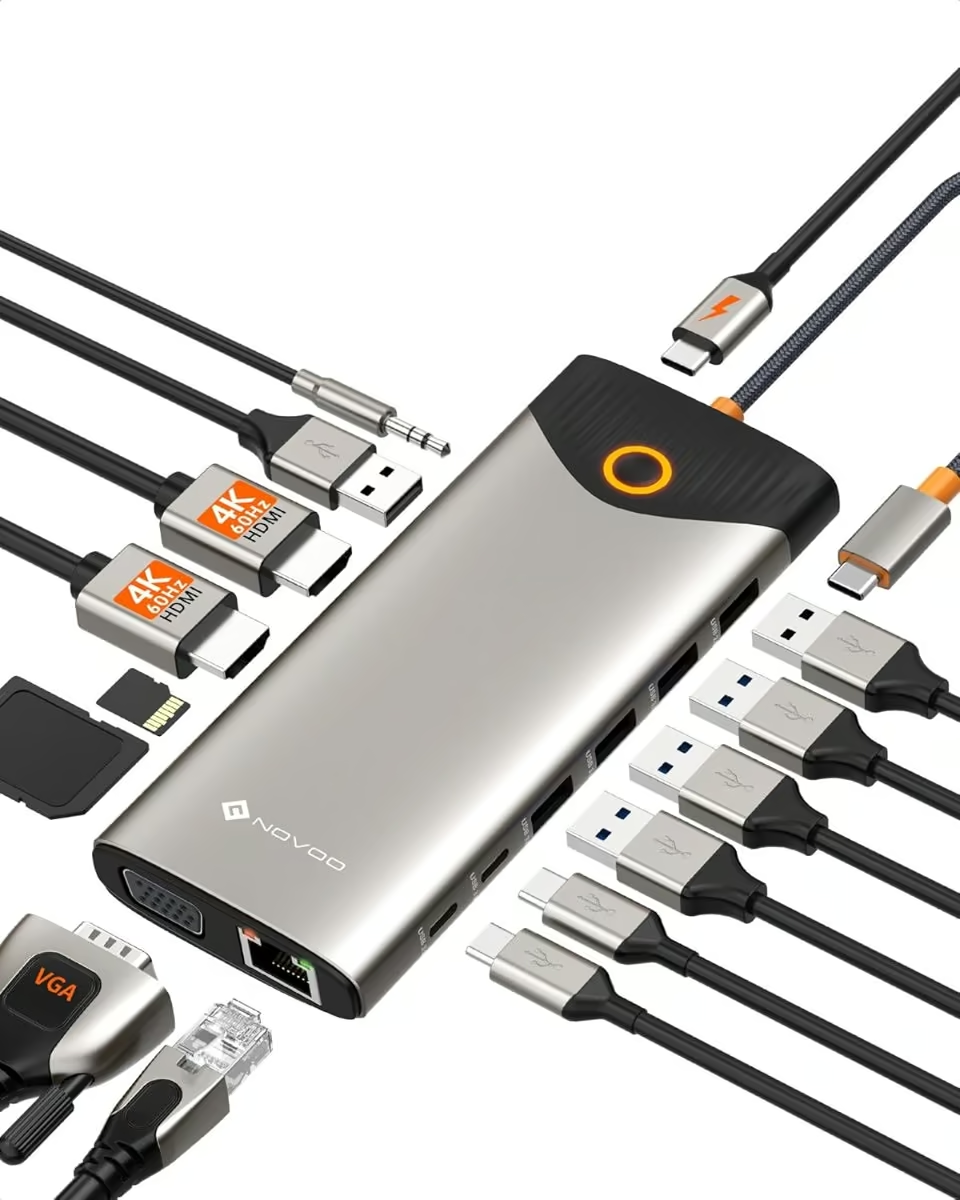
NOVOO’s 15-in-1 hub packs dual 4K@60Hz HDMI outputs alongside a VGA port, Gigabit Ethernet, SD/microSD slots and a wide spread of USB-A and USB-C data ports, giving Windows laptop users a genuinely capable two-monitor setup from a single cable.
A one-click screen-off button instantly blanks connected displays, a small but useful privacy feature for open-plan offices or shared desks. On Windows the dock can spread different content across up to three displays for multitasking, while macOS is restricted to mirroring or a single extended screen rather than true multi-monitor support.
Charging runs through a dedicated 100W USB-C PD input, delivering up to 85W to the connected laptop while the rest of the ports stay active, and the USB 3.0 data ports move files at up to 5Gbps.
The VGA port is a nice inclusion for older monitors but is dated technology, and as with most hubs in this category, Mac users lose the multi-monitor flexibility that Windows users get.
Pros
- Dual 4K@60Hz HDMI plus a VGA port for legacy monitors
- One-click screen-off button for quick privacy
- 100W PD input with up to 85W laptop charging
- Gigabit Ethernet and SD/microSD card slots included
Cons
- macOS limited to mirroring or a single extended display
- VGA port is legacy tech many buyers won’t need
- Full multi-display multitasking is Windows-only
Key specs:Ports: 2x HDMI 4K@60Hz, VGA, 2x USB-C (5Gbps + PD), 3x USB-A 3.0, 2x USB-A 2.0, Gigabit Ethernet, SD/microSD | Charging: 100W USB-C PD (up to 85W output) | Compatibility: Windows (extended multi-display), Mac (mirror/single extend)
How to Choose a Laptop Docking Station
USB-C hub vs Thunderbolt/USB4
A standard USB-C hub-style dock works with almost any laptop that outputs video over USB-C, and covers most single or dual-monitor setups. A genuine Thunderbolt or USB4 dock needs a matching port on the laptop but unlocks much higher data bandwidth and support for more or higher-resolution displays.
How many monitors, and at what resolution
Decide how many external displays you actually need and at what resolution before comparing docks, since claimed monitor counts often only apply on Windows, with Mac laptops limited to fewer independent extended displays depending on the chip.
Power delivery (PD)
Look for a PD rating that comfortably covers your laptop’s own charger wattage. Most ultrabooks and MacBooks are well served by 65-100W, while larger 15/16-inch laptops may want a dock rated higher.
Extra ports you’ll actually use
Gigabit or 2.5G Ethernet is worth having for a stable wired connection, and an SD/microSD card reader is a genuine time-saver for anyone working with photos or video. Skip paying extra for ports like VGA or a second card reader you know you’ll never plug in.
If you are building the whole workstation, the guides to gaming keyboards, laptops and portable monitors cover what pairs with this.
A dock frees the laptop from cable duty but leaves the screen sitting at desk height, which is the gap an adjustable laptop stand fills. Docks add ports rather than power, which makes them a sensible way to stretch the life of affordable laptops that shipped with only two USB-C sockets.
Verdict
The UGREEN Revodok Pro 210 is our overall pick for most people, striking a good balance of ten useful ports, dual 4K support and 100W charging at a genuinely affordable price. Anyone who needs three monitors at once should look at the Selore 17-in-1, Mac users after fast external storage should consider the WAVLINK 12-in-1 with its SSD bay, and buyers with a genuine Thunderbolt or USB4 laptop will get the most from the D-Link DUF-901 or WAVLINK Thunderbolt 5 dock. Matching the dock’s display and data capabilities to your actual laptop’s port is more important than chasing the highest port count on the box.
Frequently Asked Questions
What is a laptop docking station and do I need one?
A laptop docking station is a single hub that connects to a laptop’s USB-C or Thunderbolt port and fans out to multiple monitors, Ethernet, USB peripherals and charging through one cable. It suits anyone who regularly plugs a laptop into a fixed desk setup, since it replaces juggling several separate cables and adapters with one connection.
What’s the difference between a USB-C dock and a Thunderbolt dock?
USB-C hub-style docks work with almost any laptop that has a USB-C port capable of video output, but they typically top out around 10Gbps of data bandwidth and more limited multi-monitor support. Thunderbolt or USB4 docks require a laptop with a genuine Thunderbolt/USB4 port and can move data at 40Gbps or more, enabling higher-resolution or higher-refresh multi-monitor setups.
Can I use these docks with a MacBook?
Most docks on the market work with MacBooks for basic charging, USB peripherals and a single external display, but Apple’s own display architecture limits how many independent extended monitors a Mac can drive through one dock, often to one or two depending on the chip generation. Buyers wanting genuine multi-monitor extension on a Mac should check the specific model’s supported display count before assuming full Windows-style flexibility.
Why do some docks need a driver, and others don’t?
Simple docks that rely on the laptop’s native DisplayPort Alt Mode over USB-C are plug-and-play and require no extra software. Docks offering more than two independent extended displays generally use Multi-Stream Transport or DisplayLink chipsets, which need a manufacturer driver installed on Windows to unlock full multi-monitor extension.
How much power delivery (PD) do I actually need from a dock?
Power delivery in the 65-100W range covers most modern ultrabooks and MacBooks for full-speed charging while docked, though some larger 15/16-inch laptops draw more under heavy load. If a laptop’s original charger is rated above the dock’s PD output, expect slower charging rather than any damage, since USB-C PD negotiates power safely between devices.
Do laptop docking stations work with gaming or high refresh-rate monitors?
Many docks support 4K at 60Hz across one or more monitors, but higher refresh rates of 120Hz and above, or 8K resolutions, usually require a genuine Thunderbolt/USB4 connection and Display Stream Compression support on both the laptop and monitor. Buyers chasing high refresh rates for gaming or creative work should check both the dock’s rated bandwidth and their laptop’s own port and GPU specifications before assuming full performance.