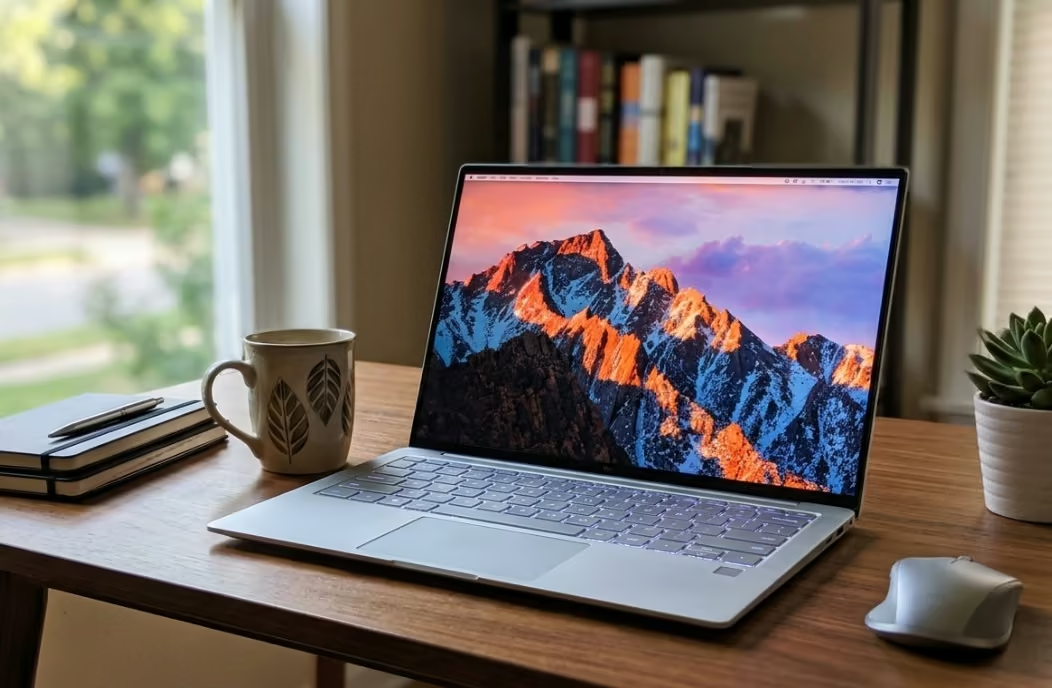
The cheapest laptop that is actually worth buying in NZ right now costs around $408 to $420, but the sweet spot for genuine 8GB RAM and a proper SSD sits closer to $500. Below we cover 7 real, currently-available options across Windows laptops, Chromebooks, and 2-in-1 touchscreens, so you can match the laptop to how you actually plan to use it rather than just its price tag.
Every laptop on this list is a genuine, in-stock listing with real specs pulled directly from product page, and we have flagged anywhere a listing’s bundle figures (like storage) are inflated so you know exactly what you are getting.
| Laptop | Best For |
|---|---|
| 1. ACEMAGIC LX15 15.6″ Laptop (16GB RAM, 256GB SSD) | Best Overall |
| 2. HP Chromebook 14a 14″ Laptop | Best Value Chromebook |
| 3. Lenovo IdeaPad Slim 3 15.6″ FHD Laptop (Ryzen 5 7520U) | Best Name-Brand Windows Laptop |
| 4. Core Innovations 15.6″ Full HD Laptop | Best for Basic Browsing & Email |
| 5. Lenovo IdeaPad Slim 3 Chromebook 14″ | Best Chromebook |
| 6. BNCF 11″ 2-in-1 Touchscreen Laptop | Best 2-in-1 Touchscreen |
| 7. Lenovo IdeaPad Chromebook Duet 11″ | Best Tablet-Style / Best for Students |
1. ACEMAGIC LX15 15.6″ Laptop (16GB RAM, 256GB SSD) – Best Overall
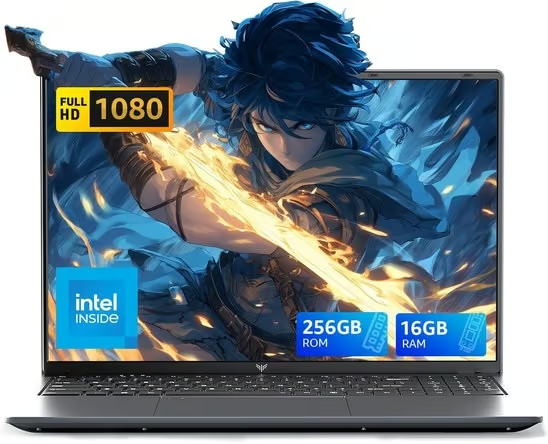
This is the most well-rounded pick in this budget bracket, and the one we’d point most shoppers to first.
It pairs an Intel N95 quad-core processor with 16GB of DDR4 RAM and a 256GB SSD. That is double the memory of most budget laptops, so several browser tabs, a word processor and a video call can run at once without the laptop grinding to a halt.
The 15.6″ 1920×1080 screen folds back 180° for sharing across a table, and the title lists Windows 11 Pro. Connectivity covers Wi-Fi, Bluetooth 5.0, USB-C, HDMI and a memory card slot, and at about 1.56 kg and 1.7 cm thick it is easy to carry between home and class.
It also has a solid review history behind it, with a large number of buyers rating it well, which matters more in this price bracket than at the premium end of the market.
Pros
- 16GB RAM, double the usual budget allowance
- Full HD 15.6″ screen with a 180° hinge
- USB-C, HDMI and a card slot
- Light for a 15.6″ laptop at about 1.56 kg
Cons
- 5000mAh battery is modest, so expect a charger in your bag for full days
- 256GB SSD fills up quickly with photos and video
- The spec table lists a different operating system from the title, so confirm Windows 11 Pro on the product page
2. HP Chromebook 14a 14″ Laptop – Best Value Chromebook
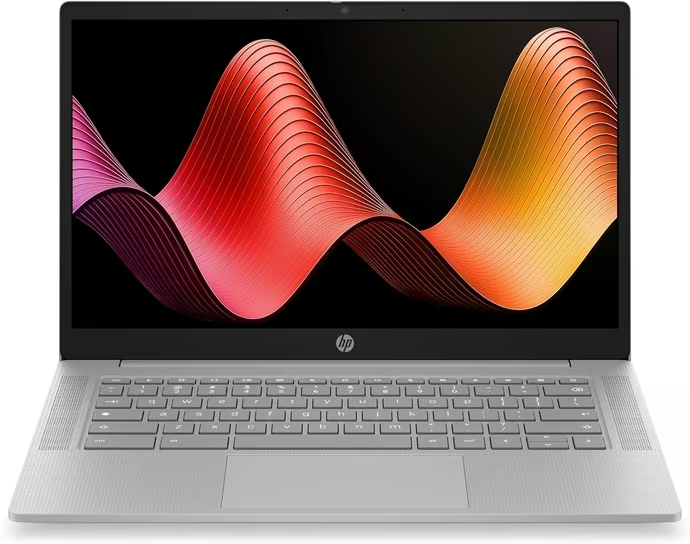
If most of what you do happens in a browser, this HP Chromebook is the lowest-cost way into a name-brand laptop in this guide.
It runs ChromeOS on a MediaTek Kompanio 540 chip with 4GB of LPDDR5 memory and 64GB of eMMC storage, which is enough for Google Docs, streaming, homework and email because ChromeOS keeps most of your files in the cloud.
The 14″ anti-glare screen is HD (1366×768) rather than Full HD, but the rest of the package is well thought out: Wi-Fi 6, Bluetooth 5.4, USB-C and USB-A, a 720p camera with a privacy shutter, dual microphones for video calls, and a light 1.35 kg body.
It is one of the most widely reviewed laptops on this list, with thousands of ratings and a strong average, so it is a proven pick for school or a second household laptop.
Pros
- Name-brand Chromebook with a strong review record
- Light at 1.35 kg
- Wi-Fi 6, USB-C and a camera privacy shutter
- ChromeOS stays quick on modest hardware
Cons
- HD (1366×768) screen is less sharp than Full HD
- 4GB RAM and 64GB eMMC limit it to light, browser-based use
- Won’t run full desktop Windows programs
3. Lenovo IdeaPad Slim 3 15.6″ FHD Laptop (Ryzen 5 7520U) – Best Name-Brand Windows Laptop
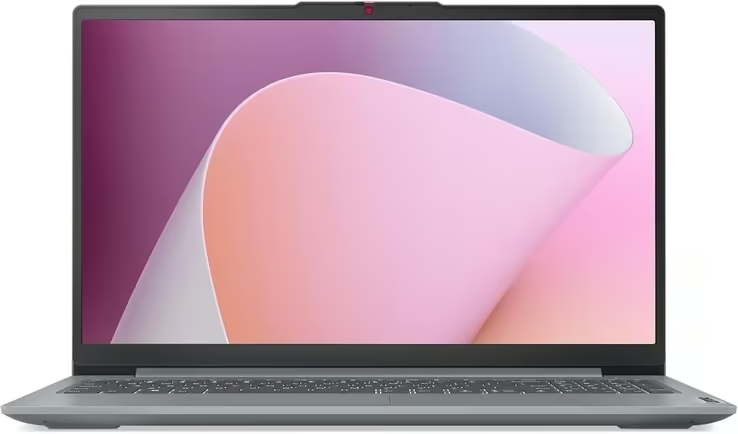
This is the step up for buyers who want an established brand and noticeably more performance than the entry-level Windows picks.
It runs an AMD Ryzen 5 7520U with 8GB of RAM and a roomy 512GB SSD on a 15.6″ Full HD screen with narrow bezels, and ships with Windows 11 Home.
Lenovo has added the practical touches cheaper laptops skip: full-function USB-C for charging, display output and data, a fingerprint reader built into the power button, a camera with a privacy shutter, Dolby Audio speakers and a bigger touchpad. Rapid Charge Boost gives about two hours of use from a 15-minute charge.
It costs more than the other Windows laptops here, and this particular listing has very few reviews so far, though the IdeaPad Slim 3 range itself is a long-running Lenovo line.
Pros
- Ryzen 5 processor with 8GB RAM and a 512GB SSD
- Fingerprint reader and camera privacy shutter
- Full-function USB-C and Rapid Charge Boost
- Established Lenovo build quality
Cons
- Pricier than the other Windows picks in this guide
- Very few reviews on this specific listing
- Basic integrated Radeon 610M graphics, not built for gaming
4. Core Innovations Full HD Laptop – Best for Basic Browsing & Email
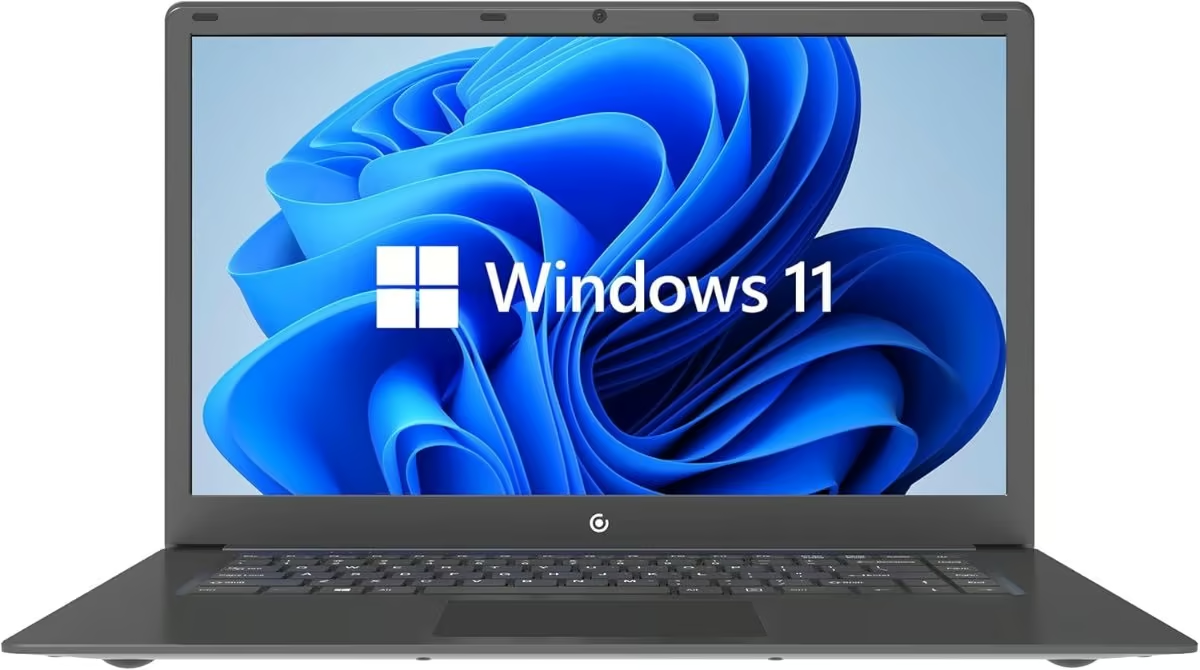
For a second household laptop or a first computer for a child or student who mainly needs email, browsing, and streaming, this is a straightforward, no-frills option.
It runs an Intel Celeron N4020 processor with 4GB of RAM and 64GB of storage on a 15.6″ Full HD screen, which covers the basics without any unnecessary extras to push the price up.
It won’t handle heavy multitasking, but for the single-tab, single-task use most secondary laptops actually see, it does the job.
Pros
- Simple, genuinely budget price point
- Full HD 15.6″ screen, larger than most laptops in this range
- Windows 11 included
Cons
- 4GB RAM and 64GB storage limit it to light, single-task use
- Smaller 22-review sample than some other picks here
5. Lenovo IdeaPad Slim 3 Chromebook 14″ – Best Chromebook
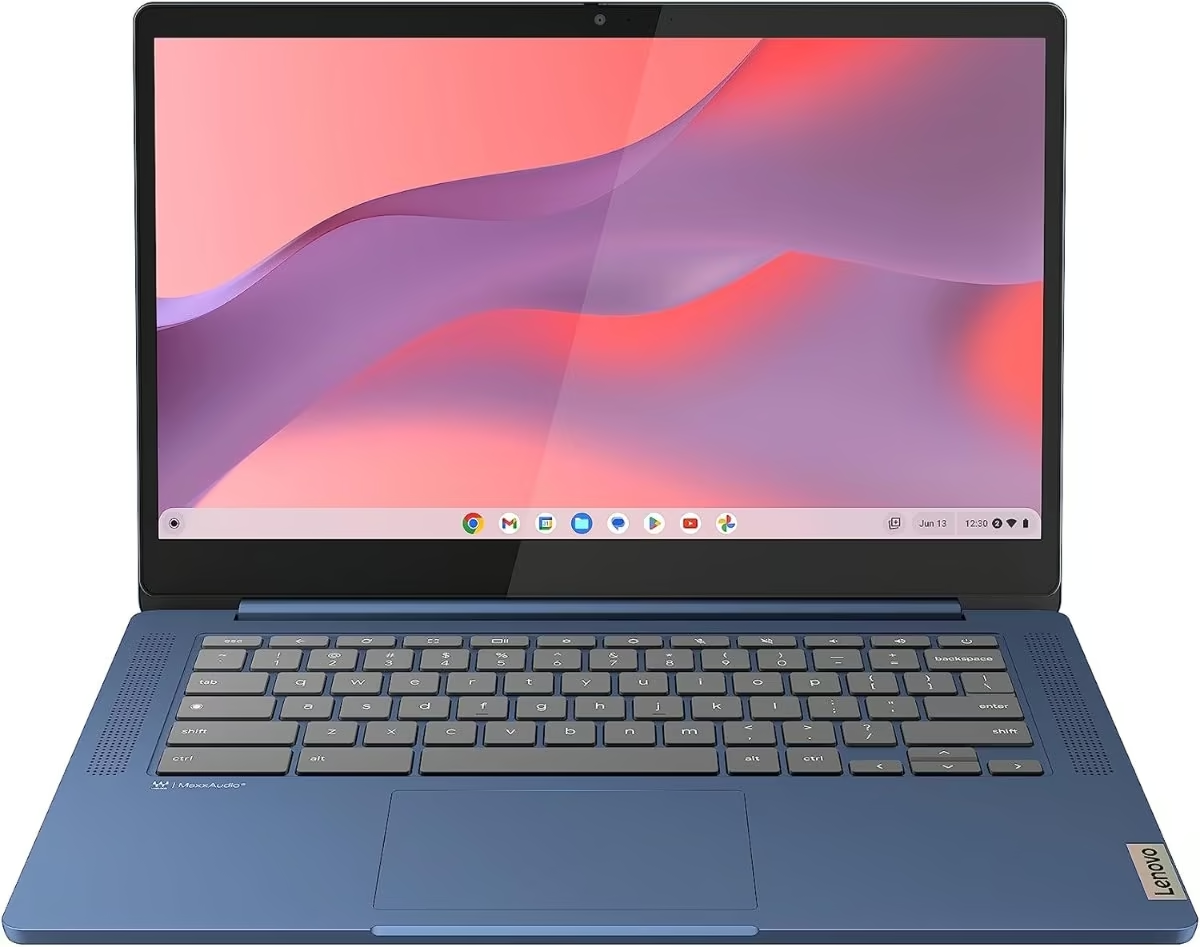
If your day-to-day is mostly Chrome, Google Docs, and streaming, a Chromebook will feel noticeably snappier than a Windows laptop with the same specs, since ChromeOS is built to run light.
This Lenovo runs a MediaTek Kompanio 520 chip with 4GB of RAM and 64GB of eMMC storage on a 14″ Full HD screen, and it’s the most-reviewed laptop in this entire guide by a wide margin at 448 reviews and a strong 4.4-star average.
It sits a little over the strict $500 mark, but the combination of Lenovo’s build quality and this many genuine reviews makes it worth the stretch if a Chromebook suits how you actually use a laptop.
Pros
- 448 reviews and a 4.4-star average, the strongest track record in this guide
- ChromeOS runs smoothly even on modest hardware
- Lenovo build quality at a Chromebook price
Cons
- Around $60 over the strict $500 mark
- ChromeOS won’t run full desktop Windows programs, so check your software needs first
6. BNCF 11″ 2-in-1 Touchscreen Laptop – Best 2-in-1 Touchscreen
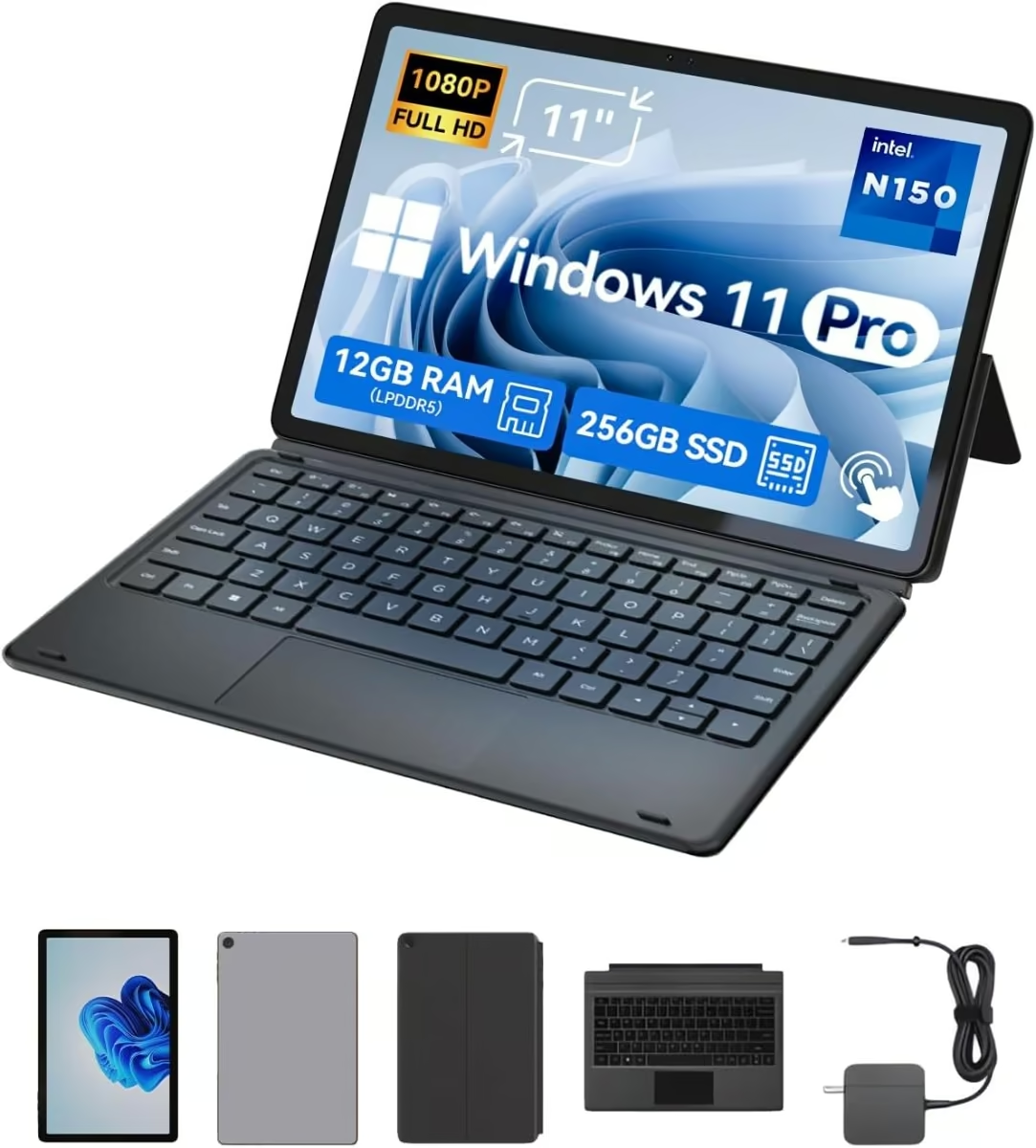
This is the pick for anyone who wants a laptop that can also fold flat or fully detach into a tablet, useful for reading, note-taking with the included stylus support, or casual drawing.
It runs an Intel N150 quad-core chip with a genuinely strong 12GB of RAM and a 256GB SSD, which is more memory than several of the Windows laptops in this guide at nearly double the price.
The 11″ FHD IPS touchscreen comes with a magnetic keyboard and kickstand included, so it works as a laptop on a desk and a tablet on the couch without buying extra accessories.
219 reviews and a 4.1-star average give it a solid track record for a touchscreen convertible at this price.
Pros
- 12GB RAM, more than most laptops in this guide regardless of price
- Touchscreen 2-in-1 with keyboard and kickstand included
- Wi-Fi 6 for a faster, more stable connection
- 219 reviews with a solid 4.1-star average
Cons
- 11″ screen is noticeably smaller than a standard 14-15.6″ laptop
- Around $44 over the strict $500 mark
7. Lenovo IdeaPad Chromebook Duet 11″ – Best Tablet-Style / Best for Students
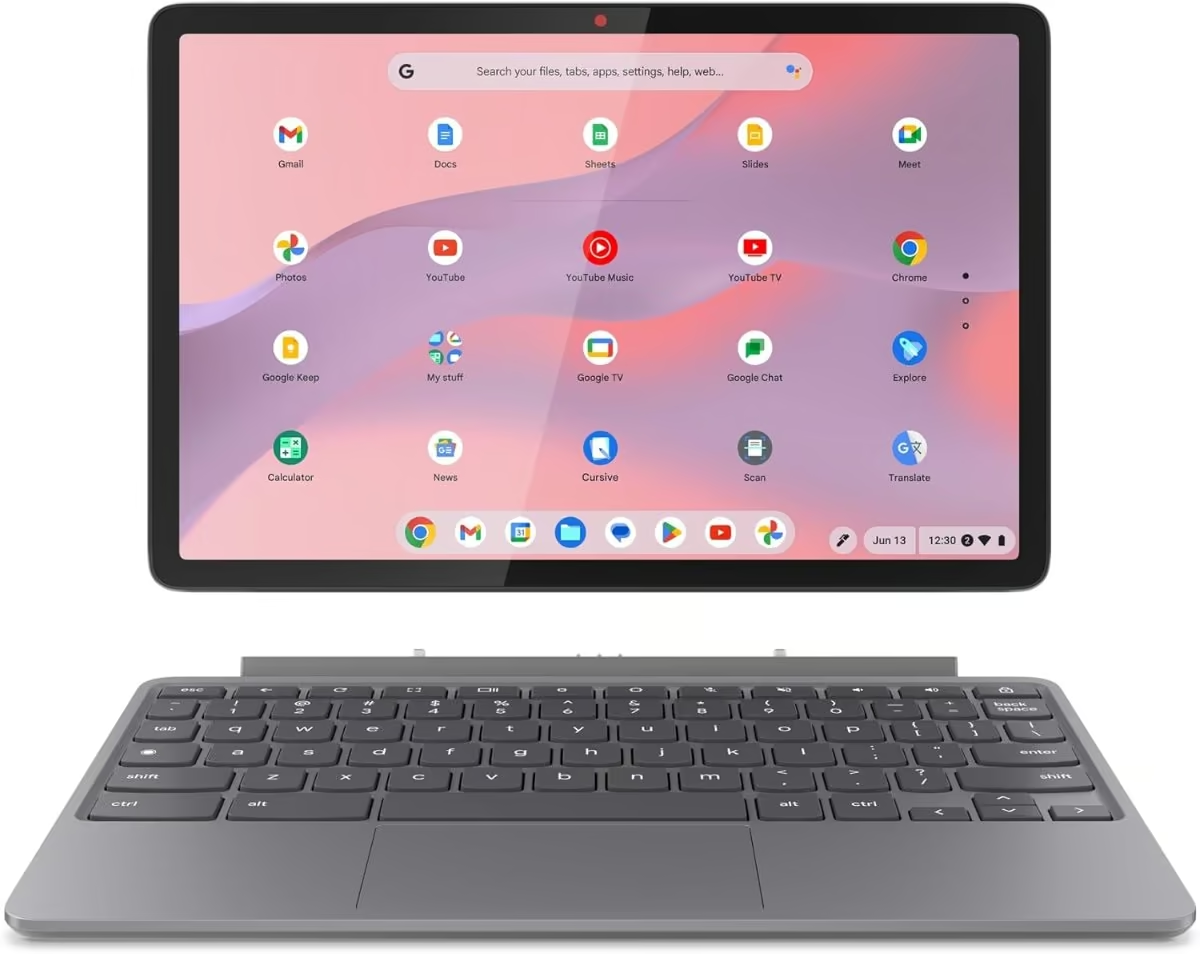
This is a genuine tablet-first design: an 11″ FHD+ touchscreen slate that comes with both a folio keyboard and a USI pen, so it works equally well for typing notes in class and sketching or annotating PDFs.
It runs a MediaTek Kompanio 838 chip with 8GB of RAM and 128GB of storage, more RAM than most of the Chromebooks and several of the Windows laptops in this guide.
It’s the most expensive laptop in this guide, but for a student who wants one device that genuinely covers typing, tablet use, and handwritten notes, it replaces what would otherwise be two separate purchases.
Pros
- Includes both a folio keyboard and a USI pen at no extra cost
- 8GB RAM, more than most Chromebooks in this price range
- Detaches fully into a standalone tablet
Cons
- The most expensive pick in this guide, well over the $500 mark
- ChromeOS limits it to Chrome-compatible apps and Android apps, not full Windows software
How to Choose an Affordable Laptop in NZ
RAM matters more than the processor name. Two laptops can list similar-sounding processors, but a 4GB machine will feel noticeably slower under everyday multitasking than an 8GB one. If your budget allows, prioritise 8GB of RAM over a slightly faster processor with only 4GB.
Check whether storage is eMMC or SSD. An SSD is faster for everyday tasks like opening apps and browsing. eMMC storage is common on cheaper laptops and Chromebooks and is noticeably slower, though it is perfectly fine for light, browser-based use.
Watch for inflated storage figures. Some budget laptop listings add up a laptop’s internal storage with a bundled dock or SD card to advertise a bigger number. Always check the spec table for the laptop’s actual built-in storage, not just the headline figure.
Decide between Windows and ChromeOS. If you need specific Windows software, stick with a Windows laptop even if it means less RAM for the price. If your day-to-day is mostly browser-based (email, Google Docs, streaming), a Chromebook will feel faster and more reliable at the same price point.
Whichever you land on, a cheap laptop sits low on the desk, and an hour a day craning at that angle is what makes one of the best adjustable laptop stands worth the extra forty dollars.
Verdict
For most people shopping on a budget, the ACEMAGIC LX15 15.6″ Laptop is the strongest all-round pick thanks to its 16GB RAM, 256GB SSD and Full HD screen. If you want to spend less and mainly work in a browser, the HP Chromebook 14a is a well-reviewed, name-brand option. For a snappier experience on a smaller day-to-day workload, the Lenovo IdeaPad Slim 3 Chromebook is the most trusted Chromebook in this guide, the Lenovo IdeaPad Slim 3 15.6″ Laptop is the step up for Windows users who want a Ryzen 5 and a 512GB SSD, and the BNCF 11″ 2-in-1 is the one to pick if you want a touchscreen that also works as a tablet.
Frequently Asked Questions
What is the cheapest laptop you can buy in NZ right now?
Genuine Windows laptops with real specs (not just a bare-minimum eMMC tablet) start from around $407 to $420 on Amazon AU with delivery to NZ, such as the Core Innovations 15.6 inch laptop covered above.
Is 4GB RAM enough for a laptop in 2026?
4GB RAM is enough for basic browsing, email, and document editing, but it will slow down noticeably if you try to run several programs or browser tabs at once. If your budget allows, 8GB RAM is a worthwhile upgrade for smoother everyday multitasking.
Should I buy a Chromebook or a Windows laptop for an affordable laptop?
If most of your day-to-day work happens in a browser (email, Google Docs, streaming), a Chromebook will generally feel faster and more reliable than a Windows laptop at the same price. If you need specific Windows software, a Windows laptop is the safer choice even at a lower spec.
Are budget laptops from Amazon reliable?
Reliability varies by listing rather than by price alone. Look for laptops with a meaningful number of genuine customer reviews and a rating above 3.5 stars, and check the actual spec table rather than relying on the bundle figures in the title, which can inflate storage numbers.
What is the difference between eMMC storage and an SSD?
An SSD is significantly faster for everyday tasks like opening apps, saving files, and booting up. eMMC storage, common on cheaper laptops and Chromebooks, is slower but still workable for light, browser-based use.
Can I upgrade the RAM or storage on a budget laptop later?
Most budget laptops in this price range have RAM soldered directly to the motherboard, so it cannot be upgraded after purchase. Storage is sometimes upgradeable via an M.2 slot, but always check the specific laptop model’s specifications before buying if future upgrades matter to you.
